
It is possible to do recurring invoicing (contract invoicing) in Easor App. Changes to the VAT rate must be made both for existing invoice templates and for invoices that have already been formed and are awaiting delivery. Below are instructions on how to make updates.
Customers
The default information defined in the customer register replaces the information defined in the invoice template (sales account and dimensions). Therefore, the customer information of customers invoiced with recurring invoices must be checked to see if the customer has a customer-specific sales account. If changes need to be made to the customer information, see chapter Customer register.
Products
Products used on recurring invoices must be updated with the new VAT rate in the product register. Instructions for this can be found in chapter Product register.
Invoice templates
The VAT changes must be updated for both the invoice template and the already formed recurring invoices waiting to be sent.
- Go to the Invoice templates tab.

- Select the template that you want to edit.
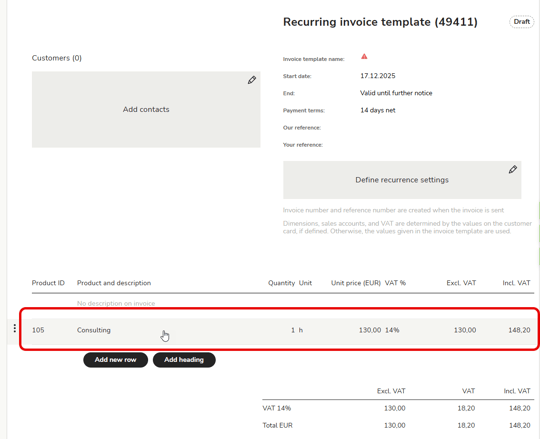
- Select the product row that you want to edit.
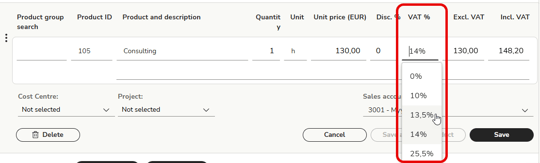
- Select the new VAT and click Save.
- The invoice template has been updated and the next recurring invoice is formed with the new VAT rate.
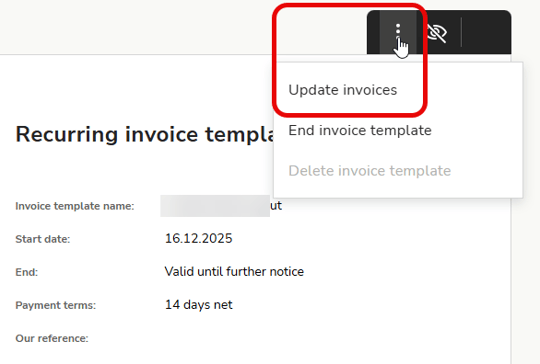
- Update invoices created from the invoice template by selecting Update invoices from the three-dot menu on the invoice template. Note! If you have made changes to an individual invoice generated from this template, these changes will be lost in the mass update of invoices.
- Repeat for all invoice templates where the VAT needs to be updated.