
In Easor App, you can create sales invoices with VAT rates of 14% and 13.5%. Easor has added a second, parallel sales account with the same name and number and a VAT rate of 13.5% to the VAT rate of 14% that the company has been using. This means that the user does not have to ask for a new sales account for VAT rate 13.5 % to be created, but that two identical sales accounts with different VAT rates are available in parallel in the software.
It is the responsibility of the invoicing party to ensure that the invoice is created with the correct VAT rate, so it is important to select the correct sales account from the two VAT rates when creating the invoice.
Also remember to update the customer and product registers in Easor App with the new VAT rate of 25.5%.
In Easor App, the date of the invoice has no effect on the available VAT rates or sales accounts, i.e. the software does not automatically update the invoice with this information based on the date of the invoice. When adding an invoice line, the user must select the sales account and VAT rate to be used based on the time of delivery of the product or service.
- If the invoice is issued on 1.1.2026, the invoice will not automatically change to the VAT rate of 13.5%.
- The same invoice can have invoice lines with both VAT rates of 14% and 13.5%.
- When using the credit invoice function, Easor App creates credit invoice lines with the VAT rates of the original invoice.
- When using the Copy function, the program creates an invoice copy with the VAT rates of the original invoice.
Sales invoice integrations
Through an interface, it is possible to import sales invoices with the new VAT rate when the system vendor has updated the new VAT rate in its software. Notes regarding system integrations:
- Easor's sales invoicing service reads the VAT rate from the invoice lines of the incoming material.
- Sales invoicing uses parallel accounts for the VAT rates of 14% and 13.5%, so there is no need to define new accounts.
- In the Web service interface, the VAT information is imported in the VAT_RATE field in the format '13.50'.
- For materials submitted as transfer files, the VAT rate is transferred with the material in a specified field (e.g. 'RowVatRatePercent') and the decimal place is separated by a comma.
- With regard to materials delivered and retrieved from Easor, it must be ensured that the materials can be entered into the customer's systems also when the VAT rate changes.
Selecting a sales account
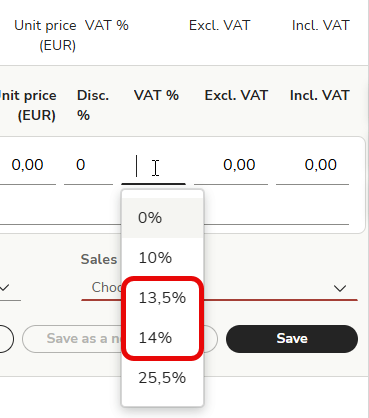
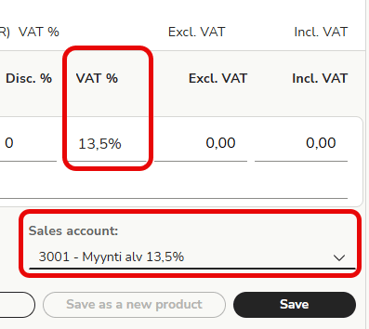
In the Sales Invoicing service, a sales account with the same name can appear twice because Easor has added a new sales account with the same name and number and a VAT rate of 13.5% to the VAT rate of 14% that the company has been using.
The user must first select a VAT rate from the VAT % menu so that the sales accounts for that VAT rate will be available in the Sales account menu. The VAT rate for the selected sales account can be seen in the VAT % field on the invoice line.
Customer register
Update the new VAT rate in the Sales Invoicing customer register. The update can be easily performed as a mass update.
- Sign in to Easor App. From the main menu on the left, select Sales invoicing – Customers.
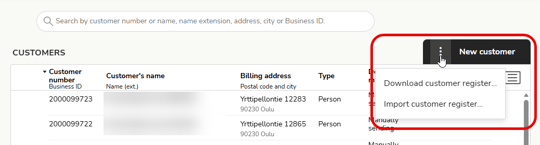
- Select Download customer register from the three-dot menu. The customer register will be downloaded to your computer as an Excel file.
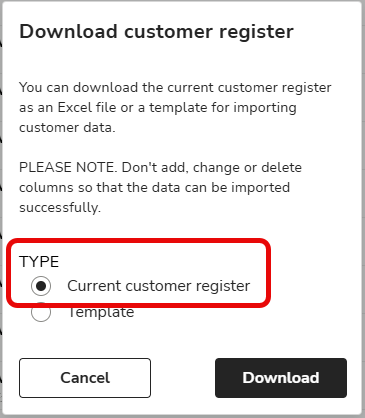
- Select Current customer register and Download.
- Do not make any changes to the file!
- Import the customer register back to the Easor App by selecting Import customer register from the three-dot menu.
- Select the Excel file you downloaded earlier. Easor App will display a summary of the changes. Select Import.
- The new VAT percentage will be updated in the customer register.
Product register
Update the new VAT rate in the Sales Invoicing product register. The update can be easily performed as a mass update.
- Sign in to Easor App. From the main menu on the left, select Sales invoicing – Products.
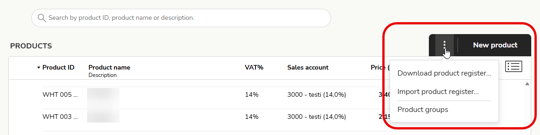
- Select Download product register from the three-dot menu. The product register will be downloaded to your computer as an Excel file.
- Select Current product register and Download.
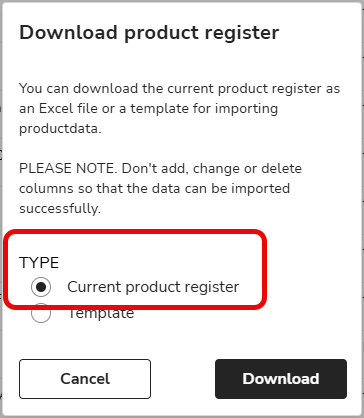
- Do not make any changes to the file!
- Import the product register back to the Easor App by selecting Import product register from the three-dot menu.
- Select the Excel file you downloaded earlier. Easor App will display a summary of the changes. Select Import.
- The new VAT percentage will be updated in the product register.