
These instructions apply to the new Payments service. How do I know if I’m using the new Payments service?
If you are using the basic version of the Payments service, go to the article Credit Notes.
When you approve a credit note (select Apply credit on the credit note), it is automatically allocated to approved purchase invoices from the same supplier. You can see the allocation when you approve the purchase invoice, so you know in advance how much will be paid.
How credit note allocation works
- A credit note is only allocated to invoices from the same supplier. The supplier is identified by name.
- If there are several purchase invoices, the credit note is first allocated to the one with the earliest payment date.
- If there are several credit notes, the largest one is applied first. The due date of the credit note has no effect on the allocation.
- The allocation is recalculated whenever new invoices from the same supplier are approved. The allocation is only final once the payment has been sent to the bank.
- A single consolidated payment is sent to the bank, containing details of the allocated credit notes and purchase invoices. The bank statement shows a single payment transaction covering the entire allocation.
Example 1
Two purchase invoices and two credit notes have been approved from a supplier.
Purchase invoice 1: €30, due date 5 October.
Purchase invoice 2: €20, due date 12 October.
Credit note 1: €25
Credit note 2: €10
Credit note 1 is applied to purchase invoice 1. --> €5 remains outstanding on purchase invoice 1 and credit note 1 has been used in full.
Credit note 2 is applied to purchase invoice 1. --> €0 remains outstanding on purchase invoice 1 and €5 of credit note 2 remains unused.
The remainder of credit note 2 is allocated to purchase invoice 2. --> There is €15 remaining to be paid on purchase invoice 2, and credit note 2 has been used in full.
A payment of €15 is sent to the bank on 12 October.
Example 2
One purchase invoice and one credit note have been approved from the supplier.
Purchase invoice 1: €30, due date 5 October.
Credit note 1: €10
Credit note 1 is allocated to purchase invoice 1. --> There is €20 remaining on purchase invoice 1 and credit note 1 has been used in full.
A payment of €20 will be sent to the bank on 5 October.
Check the allocation before approving the purchase invoice
- Open the purchase invoice from the Pending tab.
- At the bottom of the invoice, in the Allocated invoices section, you can see which credit notes are allocated to this purchase invoice. Click on the credit note number if you wish to view the credit note details.
- Select Pay in the top right-hand corner.
- Once the invoice has been approved, you can view the allocation of credit notes on the In payment tab.
- Select the link icon next to the invoice.
- You can see which credit notes have been allocated to this purchase invoice and when the invoice is due for payment.
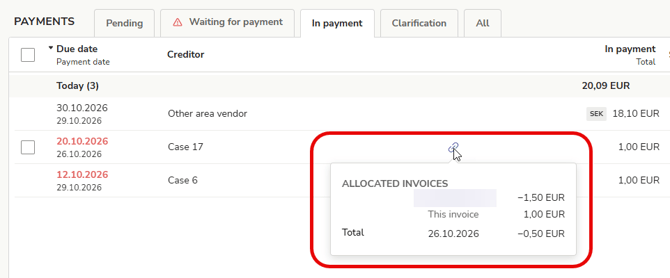
The allocation is recalculated whenever new invoices from the same supplier are approved. The allocation is only final once the payment has been sent to the bank.
Unallocate
If you do not want a credit note to be allocated to a specific purchase invoice, remove the purchase invoice from the payment:
- Go to the Payments tab.
- Select Remove from payment next to the purchase invoice. The allocation is cancelled, and the invoice is moved to the Waiting for payment tab.
- When you later add the invoice back to the payment, credit notes from the same supplier will be automatically allocated to it again.
You cannot remove a credit note from payment once you have selected Apply credit for that credit note.
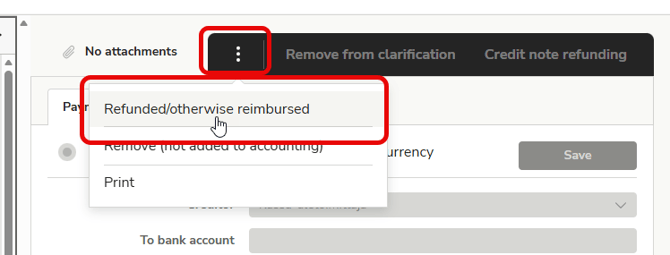
If you do not wish to allocate the credit note to any purchase invoice, but instead have the funds refunded to your account:
-
Select Refunded / otherwise reimbursed from the three-dot menu.
-
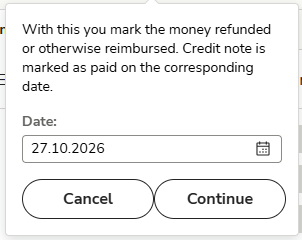
Select the date on which the credit note is to be marked as used, then select Continue. The credit note will be marked as used.
-
If you wish to use the credit note at a later date, remove it and add it again later.