---
title: Credit notes
description: This article explains how to process a credit note in the Payments service.
---
[Skip to content](https://help.easor.com/en/easor-app-credit-notes#main-content)
- [English](https://help.easor.com/en/easor-app-credit-notes)
- [Suomi – Suomi](https://help.easor.com/fi-fi/easor-app-hyvityslaskut)
English
Show submenu for translations
[](https://help.easor.com/fi-fi?hsLang=en)
Open main navigation
Close main navigation
- - [English](https://help.easor.com/en/easor-app-credit-notes)
- [Suomi – Suomi](https://help.easor.com/fi-fi/easor-app-hyvityslaskut)
English
Show submenu for translations
- [Easor App -koulutus torstaisin klo 13](https://easor.clickmeeting.com/easor-app-koulutus)
[Easor App -koulutus torstaisin klo 13](https://easor.clickmeeting.com/easor-app-koulutus)
How can we help you?
- There are no suggestions because the search field is empty.
1. [Suomi](https://help.easor.com/en?hsLang=en)
2. [Payments](https://help.easor.com/en/payments?hsLang=en)
February 23, 2026
# Credit notes
## This article explains how to process a credit note in the Payments service.
1. Open a credit note by clicking on the invoice row in the Payments view. You can recognize a credit note by its negative amount.
2. Edit the credit note details if necessary
3. Select **Use credit note** in the upper right corner.
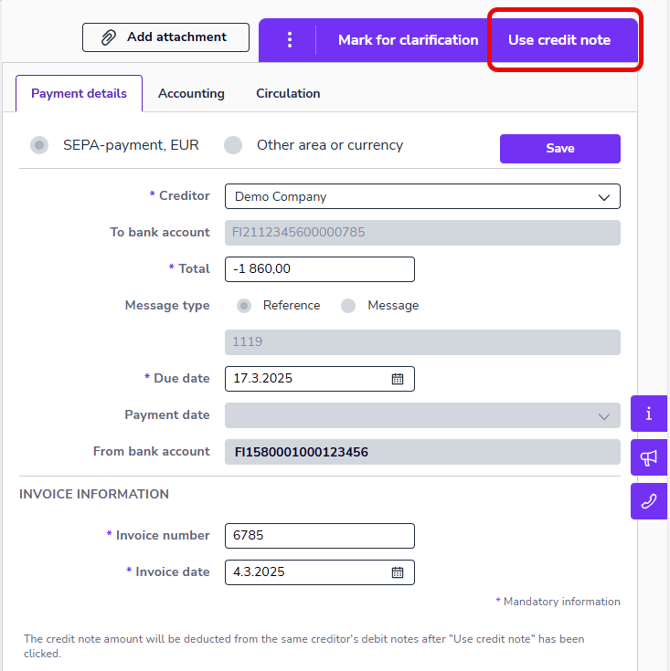
4. The program will deduct the credit note amount from the next purchase invoices from the same supplier.
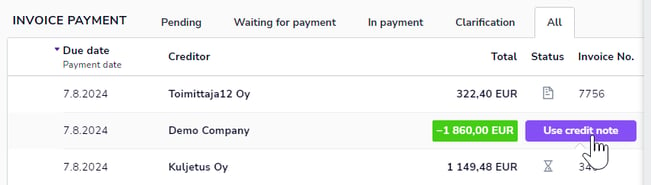
5. You can also select **Use credit note** from the invoice row in the Payments view.
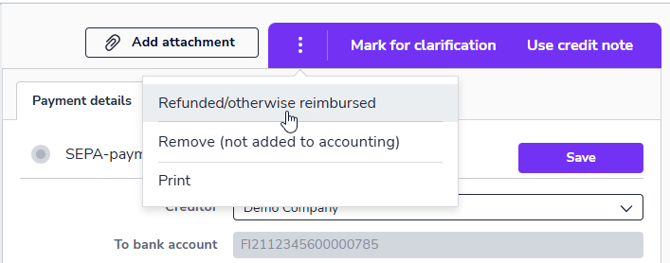
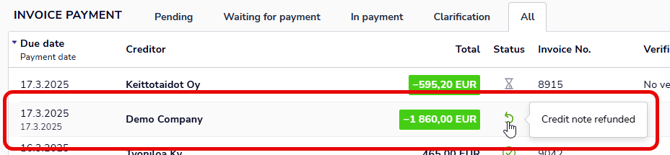
6. If you do not want to allocate the credit note to any purchase invoice, but want the money to be refunded to your account, select **Refunded / Otherwise reimbursed** from the three-dot menu.
7. Select the date on which the credit note will be marked as refunded and select **Continue**.
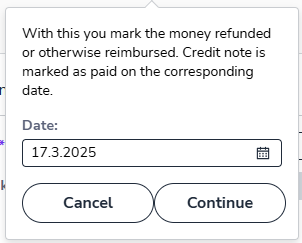
8. The credit note will be marked as refunded.
- [Release notes and product news](https://help.easor.com/en/release-notes-and-product-news?hsLang=en)
- [Service status updates](https://help.easor.com/en/service-status-updates?hsLang=en)
- [Support](https://help.easor.com/en/support?hsLang=en)
- [Home page](https://help.easor.com/en/home-page?hsLang=en)
- [Documents](https://help.easor.com/en/documents?hsLang=en)
- [Easor App mobile](https://help.easor.com/en/easor-app-mobile?hsLang=en)
- [Payments](https://help.easor.com/en/payments?hsLang=en#main-content)
- [New Payments service](https://help.easor.com/en/payments?hsLang=en#new-payments-service)
- [Sales invoicing](https://help.easor.com/en/sales-invoicing?hsLang=en)
- [Recurring invoicing](https://help.easor.com/en/recurring-invoicing?hsLang=en)
- [Bank accounts](https://help.easor.com/en/bank-accounts?hsLang=en)
- [Reports](https://help.easor.com/en/reports?hsLang=en#main-content)
- [General ledger and journal](https://help.easor.com/en/reports?hsLang=en#general-ledger-and-journal)
- [Simple Salaries](https://help.easor.com/en/simple-salaries?hsLang=en)
- [Material sending](https://help.easor.com/en/material-sending?hsLang=en)
- [Settings](https://help.easor.com/en/settings?hsLang=en)
- [General](https://help.easor.com/en/general?hsLang=en#main-content)
- [VAT](https://help.easor.com/en/general?hsLang=en#vat)
[](https://easor.com/fi/?hsLang=en)
## Asiaa asiakaspalveluun?
Palvelemme arkisin klo. 7:00–21:00.
📞 0207 525 110
✉️ [asiakaspalvelu@easor.com](mailto:asiakaspalvelu@easor.com)
[mailto:asiakaspalvelu@easor.com](mailto:asiakaspalvelu@easor.com)
Copyright © 2026 Easor