
Start creating a new recurring invoice by creating a recurring invoice template. In the template, you can specify the invoice recipients, invoice rows, and invoice sending interval, among other things. Once the template is ready, it is activated, and invoices are created and sent according to the invoice template settings.
1. Select New recurring invoice to open a blank recurring invoice template.
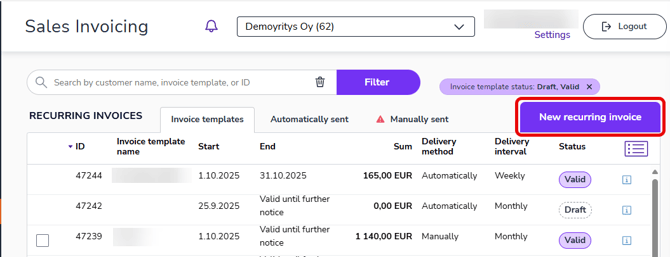
2. First, specify the basic information for the invoice template.
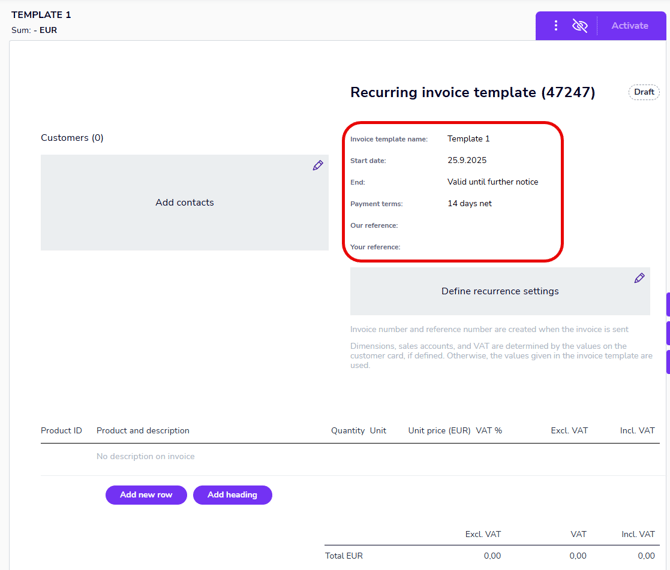
- Invoice template name: The unique name of the invoice template. A sequential identification number is automatically created for the invoice template, which cannot be edited.
- Start date: The date on which invoicing begins. It cannot be the current date or a date in the past.
- End: The date or number of repetitions after which billing ends.
- Valid until further notice: Billing continues until the invoice template is terminated.
- Date: Billing continues until a specific date.
- Repeats: Billing is repeated a specific number of times.
- Our reference/Your reference: Optional text. The information is inherited by all invoices created in the Our reference/Your reference fields and can be edited for each invoice.
3. Next, define the invoice recurrence settings. Click the Define recurrence settings field in the invoice template.
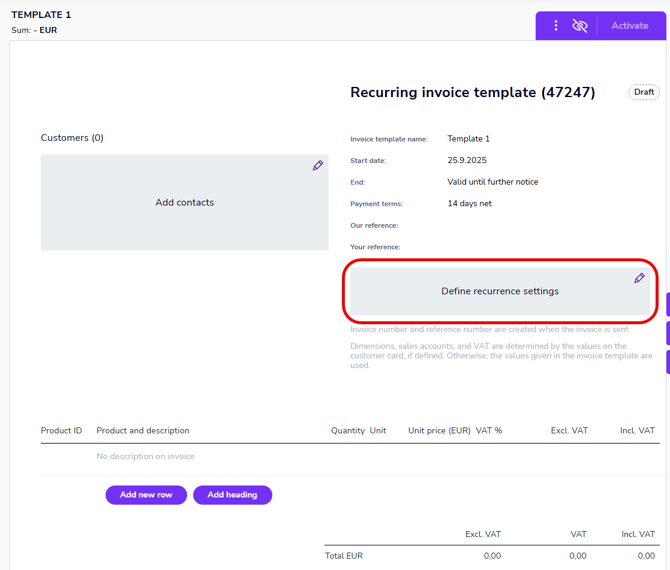
4. In the Invoice recurrence settings dialog, you can specify the invoice delivery method, the invoice date, and when and how often invoices are created. The text box at the top of the dialog explains in plain language what the selected settings mean in practice. Finally, select Save.
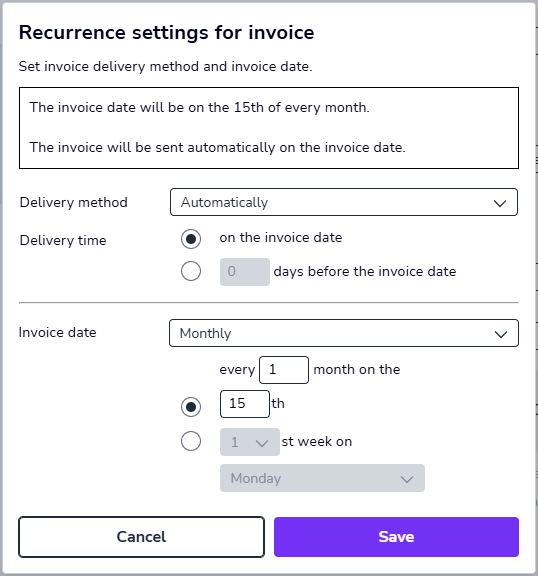
- Delivery method determines whether invoices are sent automatically at the delivery time after they are created or whether they are sent manually. Invoices are delivered to the customer according to the recipient's default delivery method (defined in the customer register).
If the customer's delivery method is set to Self-delivered, the invoice is sent via a mailing service.
- Delivery time determines whether the invoice is sent on the invoice date or x days before the invoice date.
- Invoice date determines the billing interval and the invoice date that is shown on the invoice. The invoice date can be set, for example, to a specific day of the week or date every month or every other month. The text box at the top of the view is updated when you change the settings, so you can immediately check whether the recurrence settings are correct.
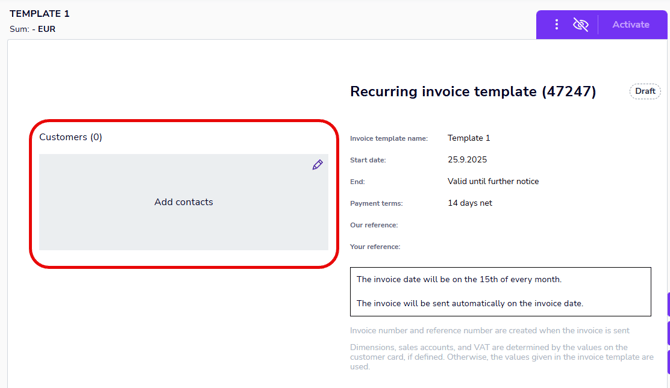
5. Next, add the invoice recipients. Click the Add customers field on the invoice template.
You can add a maximum of 460 customers on a single recurring invoice template.
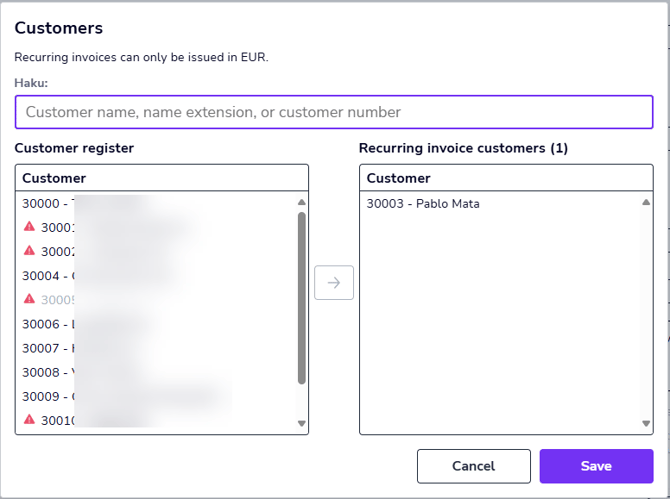
6. In the Customers dialog box, you will see a list of customers on the left. Add a customer to the invoice template by double-clicking the customer's name or select customers from the list and click the arrow icon in the middle. Use the Ctrl or Shift keys if you want to select more than one customer at a time. Finally, select Save.
If the customer is grayed out, the customer's default currency is not the euro, which means that recurring invoices cannot be sent to that customer. If there is a red triangle next to the customer, there are missing or incorrect details in the customer's information that affect the sending of recurring invoices.
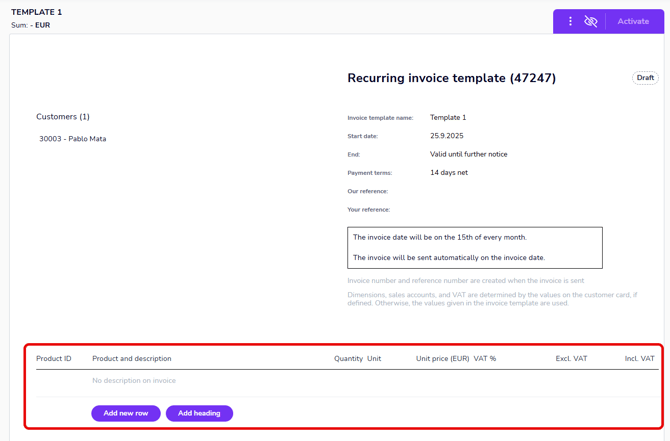
7. Finally, add the invoice rows, i.e., the products to be invoiced, to the invoice template. Select Add new row.
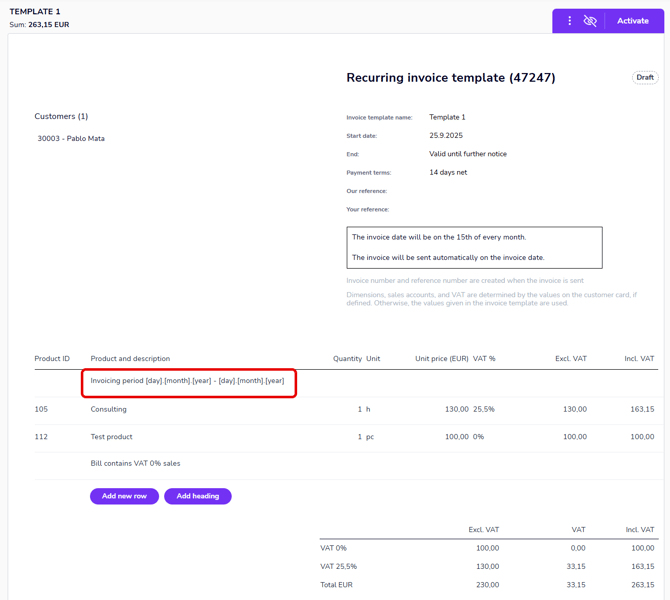
8. Enter the product rows and headings as you would on a regular sales invoice. In addition to the product rows, you can add an invoice-specific description that specifies the period covered by the invoice. The information is automatically generated on the invoice according to the recurrence settings.
9. Once all the information has been entered on the invoice template, select Activate in the upper right corner. The invoice template is activated, after which the next outgoing invoice is automatically created for each invoice recipient.
10. If automatic is selected as the sending method, invoices will be sent automatically. See How to send an automatically outgoing invoice.
11. If manual is selected as the sending method, you must send each invoice created from the invoice template manually. See How to send a manually sent invoice.
12. Sent invoices are transferred to open invoices in the Sales Invoicing Invoices view and are delivered using the customer's default invoicing method, which is defined in the customer register.
13. Invoices are created according to the End setting in the invoice template until a certain date or a certain number of repetitions.
14. If the invoice template is set to be valid indefinitely, end the invoice template when you no longer need to create new recurring invoices. Click the three dots on the left side of the invoice template row and select End invoice template.
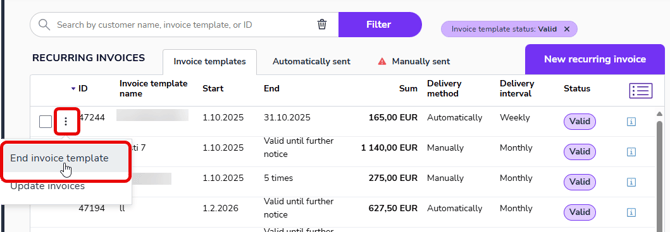
15. When the invoice template is ended, the invoices that have already been created are deleted and the status of the invoice template changes to Ended.
16. If you want to reactivate an ended invoice template, open the invoice template and select Activate in the upper right corner.