
The Payments service requires that you have access rights to pay invoices. Depending on your access rights, you will either see all purchase invoices or only those that you are responsible for paying.
The Payments service in the Easor App mobile application allows you to view purchase invoices received by your company. Purchase invoices are sorted by due date, with the oldest due date first.
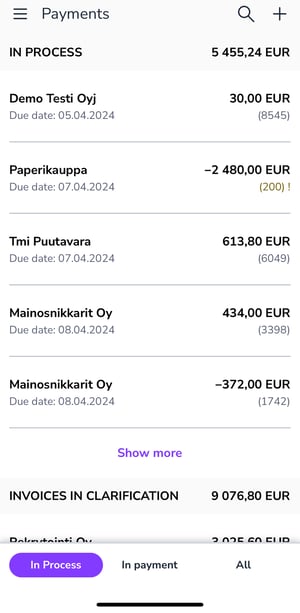
You can navigate the Payments section using the buttons at the bottom of the screen.
- The In process section contains all invoices that you need to check/approve, as well as invoices in the clearing stage.
- The In payment section shows approved purchase invoices that have been selected for payment.
- Purchase invoices in the Waiting for payment status have been approved but not selected for payment.
- The In payment section is empty if you do not have the right to make payment proposals. Paid purchase invoices show the payment date and invoice number.
- The All section shows either only your own purchase invoices or all purchase invoices, depending on your rights.
Pay the invoice
1. Select the purchase invoice you want to process from the Payments view.
2. Check the purchase invoice details.
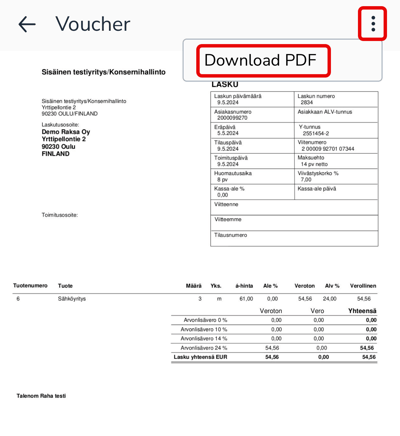
3. You can download the purchase invoice to your phone as a PDF file. Swipe down on the page to access the Voucher view. Then select Download PDF from the three-dot menu in the upper right corner. Return to the previous view using the arrow in the upper left corner.
4. Edit the additional information on the purchase invoice if necessary.
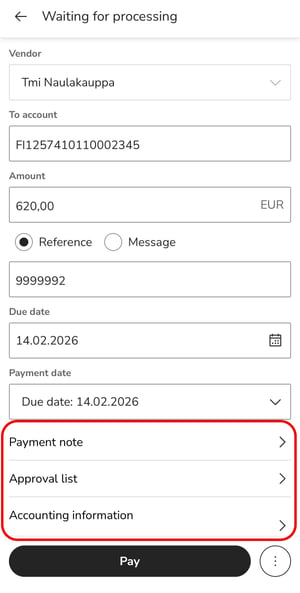
- Payment note allows you to edit the invoice number, invoice date, and due date, and set a cash discount date if necessary.
- In the Approval list section, you can select a approval list for the purchase invoice and add a comment to the invoice.
- In the Accounting information section, you can set dimensions for the purchase invoice.
- You can split the purchase invoice into multiple expense lines by selecting Split invoice into multiple lines.
5. Select Pay to pay the purchase invoice.
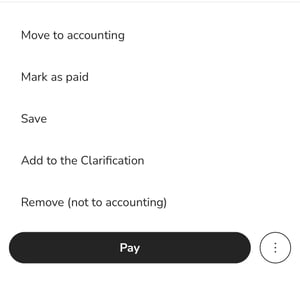
6. The three-dot button in the purchase invoice preview view provides additional options for processing the invoice instead of paying it:
-
Mark as paid marks the purchase invoice as paid if you have paid the purchase invoice through another channel.
-
Save saves the changes you have made.
-
Add to the clarification sets the purchase invoice to be clarified.
-
Remove, (not to accounting) deletes the purchase invoice.
-
Move to accounting transfers the purchase invoice to approved and Waiting for payment status.
-
The purchase invoice must still be selected separately for payment in the Payment section or with a payment proposal.
-
Clarify purchase invoice
At the bottom of the In process section, you will find purchase invoices that need to be clarified, i.e., purchase invoices that require action before they can be paid.
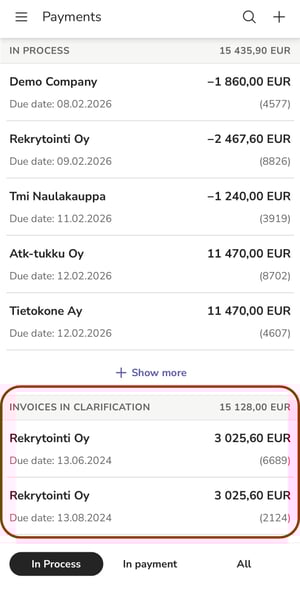
1. Open the purchase invoice to be processed.
2. Make the necessary changes or additions to the purchase invoice information. Select Save from the three-dot button at the bottom of the page.
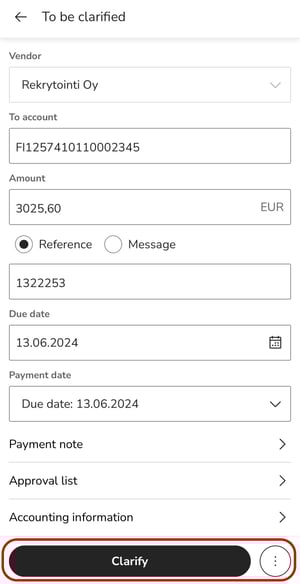
3. Select Clarify if you want to return the purchase invoice to circulation.
4. If you want to void the invoice, select Remove (not to accounting).