
With the Receipt or payment function, you can create new payments in the Easor App mobile application.
Making payments is only available to users with invoice creation rights. If the user has posting rights, the mobile application cannot be used to create a new purchase invoice.
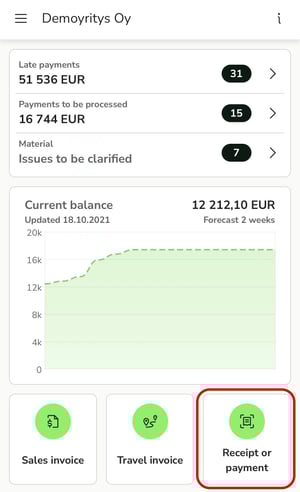
1. Select Receipt or payment from the front page of the mobile app.
2. Take a photo of the voucher or select a voucher from your phone. Crop and rotate the image if necessary. Add more images using the + button.
3. Approve the image(s).
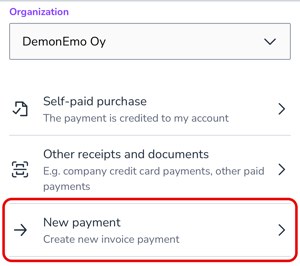
4. Check that the correct organization is selected and then select New payment.
5. Check the payment details, such as the vendor, account number, amount, and due date.
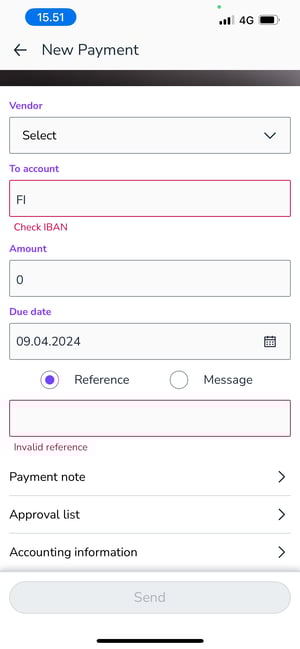
6. If the invoice does not have a reference number, write a free-form message.
7. Select the approval list. By default, the list is generated according to the invoice payment circulation rules.
8. In the Additional payment information section, you can edit the purchase invoice details, such as the invoice date, cash discount percentage, and cash discount date.
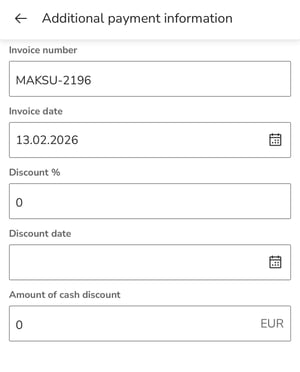
The purchase invoice number will automatically be MAKSU-xxxxxx. You can change the invoice number as desired.
9. Set any dimensions or enter additional information in the Accounting information section.
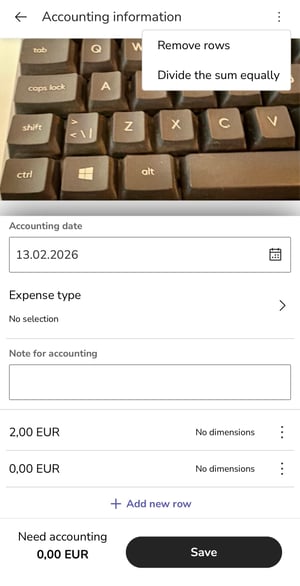
10. You can split the payment amount between several dimensions by clicking the + Split invoice into several lines button.
- When the payment is split into several lines, there will be three dots at the end of each line. Clicking on the three dots opens a menu where you can add a new accounting row or delete a row. In the upper right corner, there are three dots where you can delete all rows, returning the invoice to a single row, or divide the amount equally between all rows.
11. Send the purchase invoice.
12. The new payment is transferred to the Payments service for review/approval in accordance with the purchase invoice circulation settings.
If there are no reviewers on the circulation list and the invoice creator is listed as the approver, the purchase invoice goes directly to payment and does not need to be approved separately.