
Sometimes a payment may be rejkected by the bank. Possible reasons include, for example, insufficient funds in the bank account at the time of payment, an invalid bank account authorisation, or errors in the payment details, such as an incorrect account number.
If a payment is rejected, you will receive an email from Easor with the details of the rejected payment and instructions on what to do.
Rejected payments are not processed automatically; instead, you must resubmit the invoice for payment or create a new payment.
Error in the payer’s account
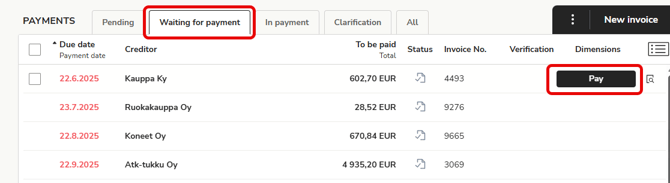
If the reason for the rejection is related to the payer’s bank account (e.g., there are insufficient funds in the account at the time of payment or the bank account authorisation is not valid), the invoice will be returned to the Payments service under the Waiting for payment tab.
Once the authorisation is in order or you have taken other corrective measures so that the invoice can be resubmitted for payment:
- Open the Payments service and go to the Waiting for payment tab.
- Find the rejected invoice and select Pay on the invoice row.
- If necessary, you can edit the invoice details before submitting it for payment.
- You can also pay the invoice in your online bank and mark it as paid in the Easor App.
Error in payment details
If a payment is rejected by the bank due to an error in the payment details, the invoice remains in Sent to bank status in the Payments service. The incorrect payment must be deleted, and a new purchase invoice must be created with the correct details.
- Open the Payments service.
- Add the purchase invoice again and check that all payment details, such as the recipient’s account number, are correct.
- To delete the incorrect payment, contact your accounting firm or Easor App support.