
Mobile authentication will be rolled out to all Easor App users on November 24, 2026 at 8 pm. You can familiarise yourself with the instructions below in advance.
Mobile authentication allows you to log in to Easor App securely and easily using a PIN code. You can enable it at any time in the Easor App mobile application.
You only need to set it up once. After that, you’ll be able to log in using just your PIN code.
However, mobile authentication is a device-specific feature and can only be active on one device at a time. If you change your phone, you’ll need to set up mobile authentication again on your new device.
1. Install the Easor App mobile app or update the app if you have already installed it.
- Download the iPhone app from the App Store or scan the QR code (the code will open in a new window).
- Download the Android app from Google Play or scan the QR code (the code will open in a new window).
2. Launch the Easor App mobile app. Select your country and then Get Started.
3. You will be shown instructions on how to set up mobile authentication. Select Continue.
If you are unable to enable mobile authentication at this time, select Use another login method, and a verification code will be sent to you via text message.
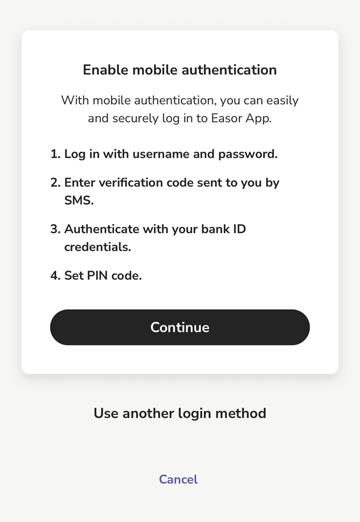
4. Log in to the Easor App mobile app using your username and password. The login details are the same for both the Easor App browser-based version and the mobile app.
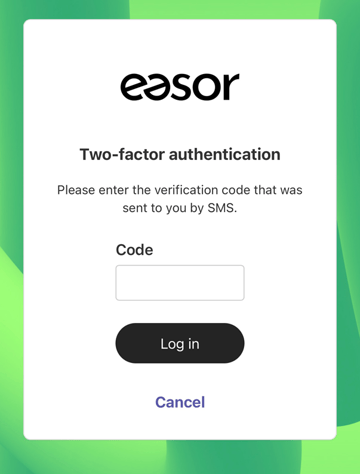
5. Enter the verification code sent via text message (SMS).
Please note that this text message verification is only required once during set-up; you will log in without a code in future.
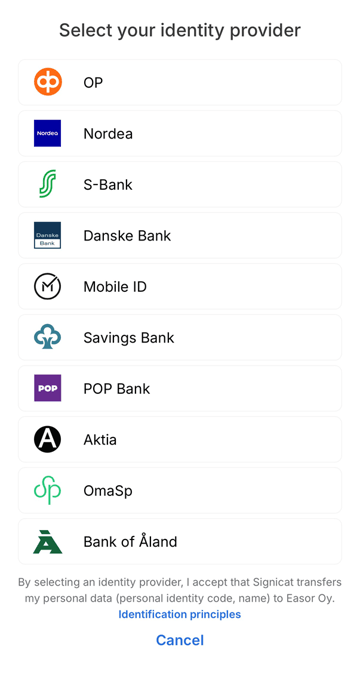
6. Complete strong authentication using your chosen method (bank credentials or Mobile Certificate).
Strong authentication is a one-off identity verification process that enables you to log in using a PIN code in future.
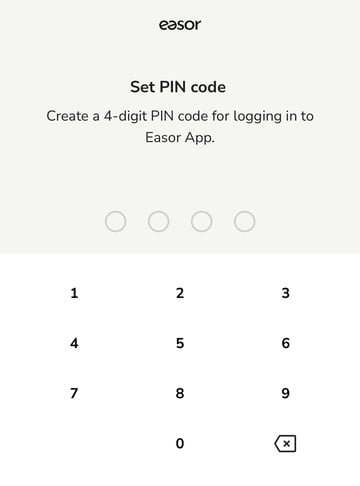
7. Once you have completed strong authentication, set a PIN code which you will use to log in to the Easor App in future. Confirm the code by entering it a second time.
8. Once set-up is complete, select Close. Mobile authentication is now enabled, and you can log in to Easor App using your PIN code via the mobile app and in your browser.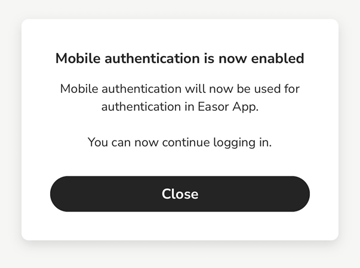
9. If you are using the Easor App browser version, the next time you log in you will see a prompt to approve the login via the mobile app.