
The Payments view brings together all purchase invoices that match the search criteria. Open a purchase invoice by clicking on the invoice row to view its contents and pay the invoice.
- Use the tabs or edit the search criteria to find the purchase invoice you want.
- Arrange purchase invoices in ascending or descending order by clicking on the column headers.
- Select a compact or spacious view by clicking on the Concise/Normal view icon on the right side of the header row.
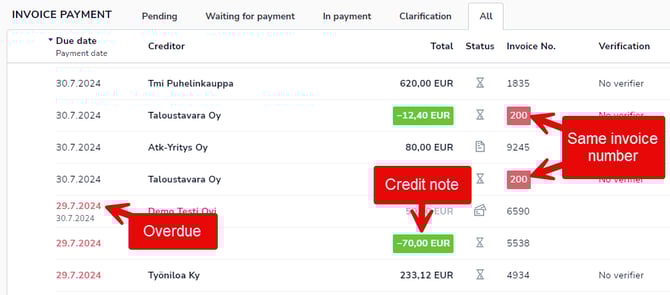
The due date of overdue, unpaid purchase invoices is shown in red text. The amount of credit invoices is highlighted in green.
If several purchase invoices with the same invoice number have been received from the same supplier in the Easor App, the purchase invoice number is highlighted in red.
At the bottom of the page, there is a summary section that shows the number of purchase invoices in the view and their total amount. In addition, the default payment account balance and information on when the balance was retrieved from the bank are displayed.
Payments view tabs
In the Payments view, purchase invoices are sorted into different tabs depending on the status of the invoice or payment.
The Pending tab contains purchase invoices that are awaiting action, such as approval.
The Waiting for payment tab contains purchase invoices that are awaiting payment. Pending purchase invoices include invoices for which no payment date has been specified or invoices that have been approved but not yet paid.
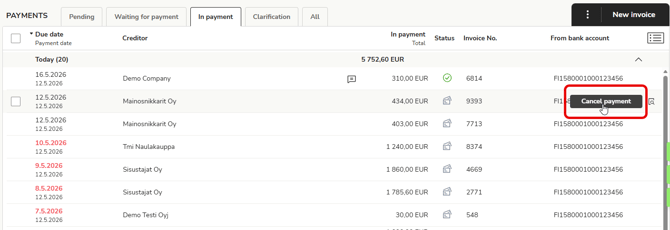
In Payment contains purchase invoices that have been sent for payment. Purchase invoices sent to the bank on the same day are displayed under the Today heading. You can remove a purchase invoice from payment by going to the invoice row and selecting Cancel payment. The purchase invoice will then be moved to the Waiting for payment tab, where it can be put back into payment.
The Clarification tab contains purchase invoices that need clarification. Read more about purchase invoices to be cleared and their processing in the section Set to clarification.
All tab shows all purchase invoices that you have access to.
Search
Search for purchase invoices by customer name, name extension, and invoice number. Clicking the Remove icon  clears the search criteria.
Note that the search only applies to the tab currently open.
The Filter button opens a view where you can set multiple search criteria for purchase invoices.
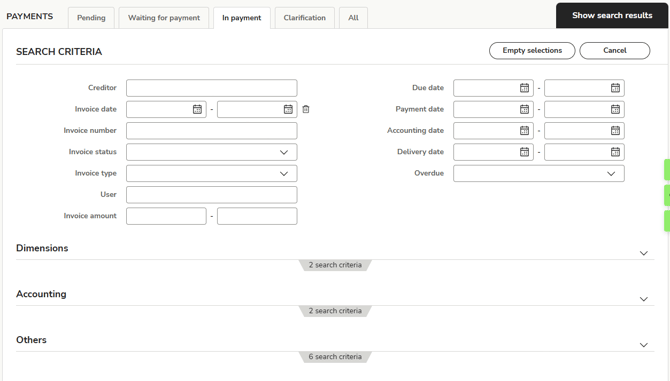
- Creditor: Select the suppliers of the purchase invoice you are searching for from the list.
- Invoice date: The time period when the purchase invoice was created.
- Invoice number: The purchase invoice number or part of the number.
- Invoice status: The status of the purchase invoice, such as open or to be cleared.
- Invoice type: The type of purchase invoice, such as a credit invoice.
- User: The persons to whom the purchase invoice is addressed or who have been on the purchase invoice circulation list.
- Invoice amount: The amount of the purchase invoice.
- Due date: The due date of the purchase invoice.
- Payment date: The payment date of the purchase invoice.
- Accounting date: The date on which the purchase invoice was entered into the accounts.
- Delivery date: The date on which the purchased product or service was delivered.
- Overdue: How many days the purchase invoice is overdue.
- Dimensions: Dimensions that have been defined for the purchase invoice, such as cost center or project.
- Accounting
- Voucher number: The document number or part of the number of the purchase invoice.
- Account: The account to which the purchase invoice has been posted.
- Others
- Comment: A comment or part of a comment added to the purchase invoice.
- Order number: The order number or part of the order number on the purchase invoice.
- Reference number: The reference number or part of the number on the purchase invoice.
- Message: Message or part of a message on the purchase invoice.
- Cash discount: Status of the cash discount used on the purchase invoice.
- Bank account (debtor): Account from which the purchase invoice was paid.
Select Show search results and the program will list the purchase invoices that match your search criteria.