
You can import customer data into the sales invoicing customer register using an Excel file and download the current customer register to your computer.
Import customer register
- Go to the customer register by selecting Sales invoicing - Customers from the menu on the left.
- Download an empty customer register template file by selecting Download customer register from the three-dot menu.
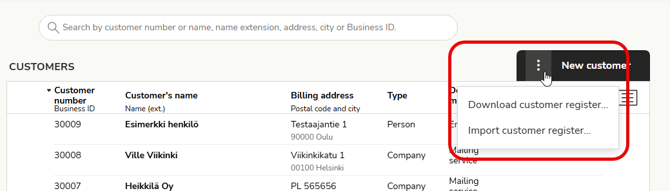
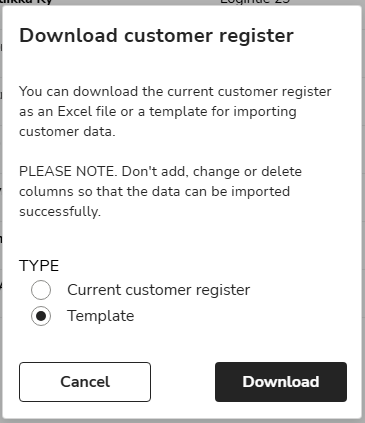
- Select Template file and Download. The empty template file will be downloaded to your computer.
- Fill in the customer information in the template file. The columns marked in red are mandatory fields. By hovering your mouse over the column header, you will see instructions for that field.
- When the file is ready, import it into the Easor App by selecting Import customer register from the three-dot menu in the customer register. The file must be in accordance with the customer register template file and in .xlsx or .xls format. Please note that importing a large file may take several minutes.
- The program will transfer the customers to the register. If there are any missing or incorrect information in the file, the program will indicate the rows and fields that need to be corrected.
Download the current customer register as an Excel file to your computer
-
Download the current customer register from Easor App by selecting Download customer register from the three-dot menu.
-
Select Current customer register and Download. The customer register will be downloaded to your computer as an Excel file.