
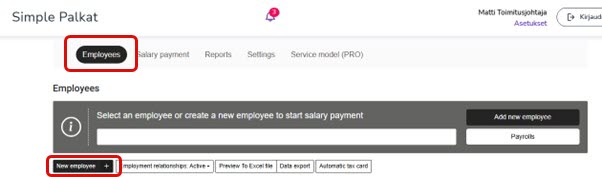
Start adding a new employee from the Simple Salaries front page.
1. Select New employee. The entrepreneur's details are also added using the New employee button.
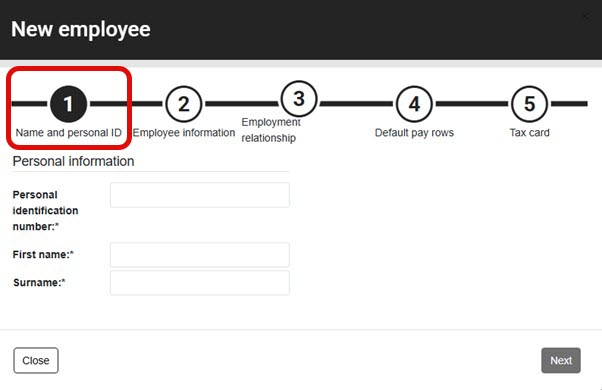
2. Enter the employee's personal identification number, first name, and last name in the Name and personal ID tab.
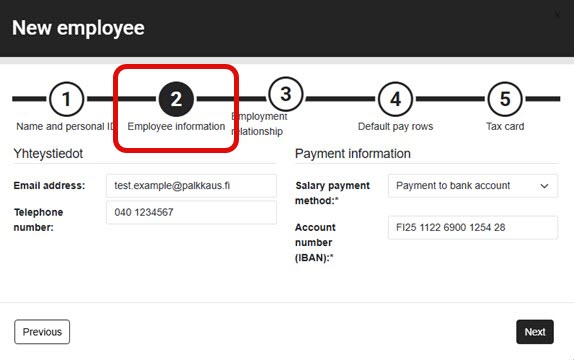
3. Enter the employee's email address, phone number, payment method, and account number (IBAN) for salary payments in the Employee information tab.
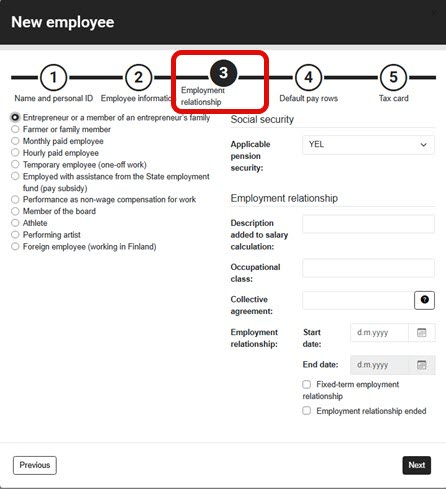
4. On the Employment relationship tab, select the employee type, applicable pension insurance, start date of the employment relationship, and, for employees covered by TyEL, the occupational class related to accident insurance. The description on the salary calculation is an optional text field. If you know that the employment relationship is fixed-term, select the Fixed-term employment setting and select the end date of the employment relationship. See here for examples of different types of income earners.
The accident insurance company will bill the company based on the selected occupational class, as the amount of the insurance premium is determined by the accident risk associated with the job. For this reason, it is important to select the occupational category carefully and correctly. If necessary, you can use the Classification Expert tool provided by Statistics Finland.
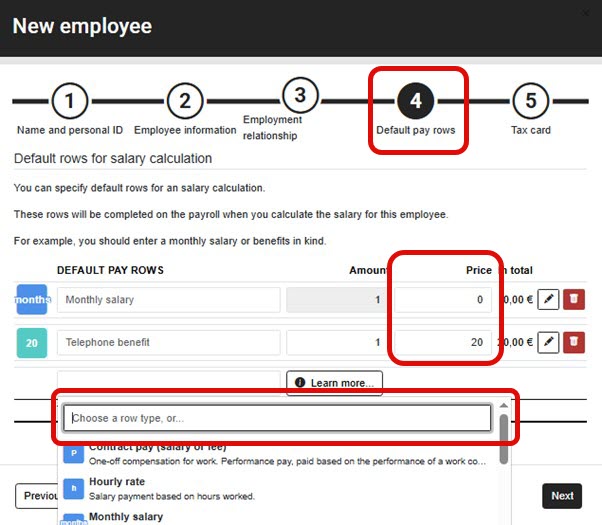
5. On the Default pay rows tab, you can add default pay rows for the employee if you wish. These rows will always appear as suggestions when the salary is paid. Specify the price of each salary type in the Price field, e.g., monthly salary €2,100.
6. On the Tax card tab, select the delivery method for the tax card. Select Retrieve automatically from the tax authority (API) to retrieve the valid tax card directly from the tax authority's interface. The tax card will then be updated with each calculation.
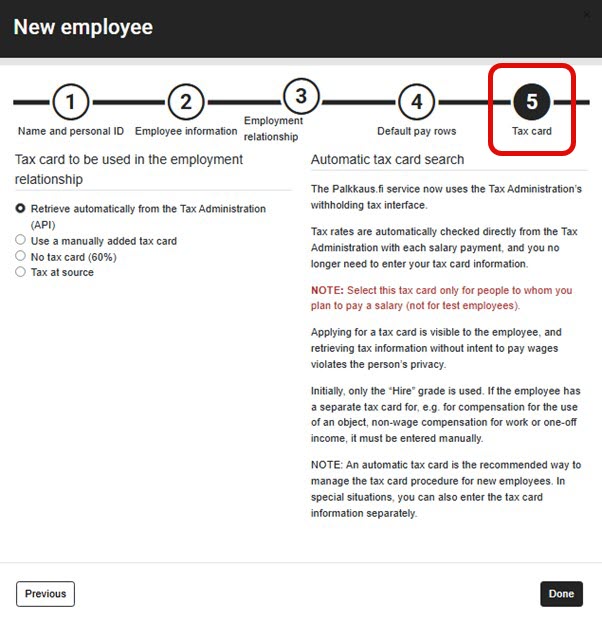
7. Finally, select Done. The new employee will be added to the system.