
Before creating a travel expense report, you must have your personal identification number and account number saved on the Settings - Personal information page.
If you have rights to multiple companies, make sure that the correct company is selected before entering your travel expense report.
You can combine several travel expenses into one travel expense report and send them as a single invoice. From the front page, you can continue editing a travel expense report that is in Draft mode.
1. Select Travel Expense from the Easor App mobile application home page. If you have any draft travel expenses, they will be displayed below.
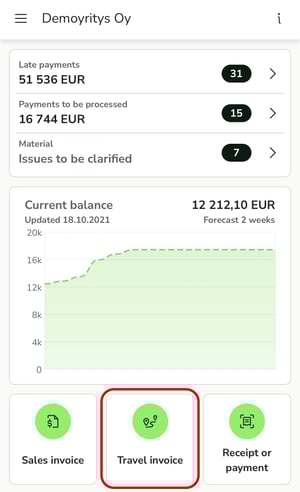
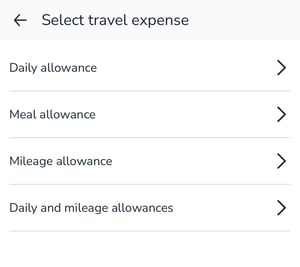
2. Select the type of expense: daily allowance, meal allowance or mileage allowance and fill in the required information. Read more about the different expense types below.
- The expense type Daily and mileage allowances is the same as mileage allowance and daily allowance, but combined into one expense type. On the first page, you enter the daily allowance information, and on the second page, you enter the mileage.
3. You can combine several travel expenses on the same travel expense report and send them as a single invoice. Select + Add travel expense if you want to add expenses to the travel expense report.
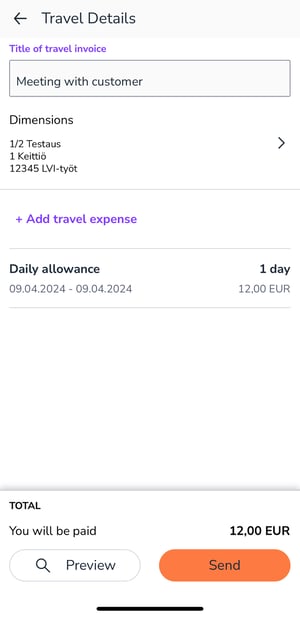
4. Add dimensions if necessary.
5. Select Preview at the bottom of the page to see a more detailed summary of the travel expense report.
6. Select Send.
7. The travel expense report is transferred to the Payments service for processing.
Once sent, the travel expense report can no longer be edited.
Daily allowance (per diem)
1. Select the start and end dates of the trip.
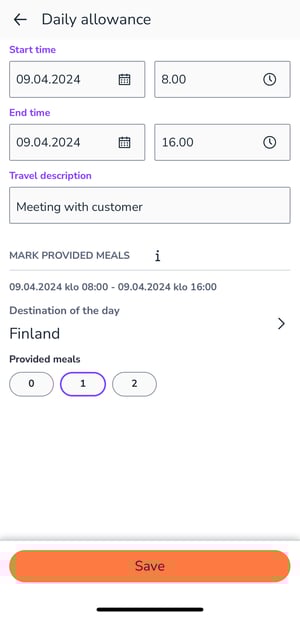
2. Briefly describe the purpose of the trip in the text field. This will create a heading for the travel invoice.
3. Enter the number of free meals received during the trip in the Meals provided field.
4. Select the destination country for each day of the trip.
If you have selected multiple days and change the destination country for the first day, confirm whether you want to change only the destination for the first day or the destination for all other days as well.
5. Save the expense to the travel expense report.
Mileage allowance
1. Enter the date of the trip.
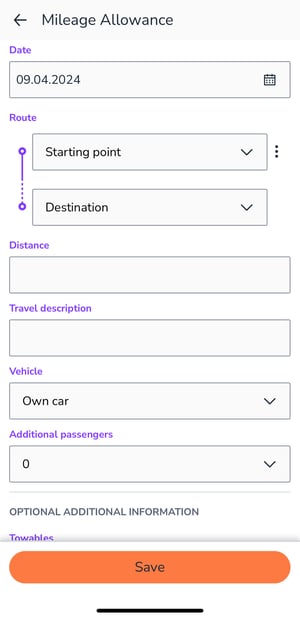
2. Enter the route, i.e. the exact addresses of the departure point and destination.
- If the desired address cannot be found in the map application, you can still select it as a route point and enter the length of the trip yourself.
- Route points can be deleted or their order can be edited from the menu that opens behind the three dots.
3. The program calculates the length of the trip based on the route points entered.
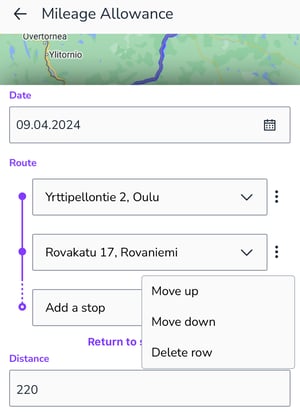
4. Add the purpose of the trip (this creates a heading for the travel expense report) and other optional information.
5. Save the expense to the travel expense report.
If you record the kilometers of several different trips on the same travel expense report, the tax authorities will require a driving log or an itemized travel expense report.
Meal allowance
You are entitled to a meal allowance if you have not been paid a daily allowance for the trip and you have not had the opportunity to eat at your usual place of dining.
1. Select the start and end dates of your trip.
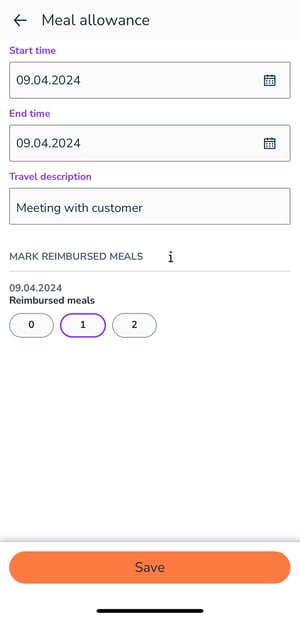
2. Add the number of meals to be reimbursed.
3. Save the expense to your travel expense report.