The Receipt or payment function allows you to submit accounting material to accounting using the Easor App mobile application.
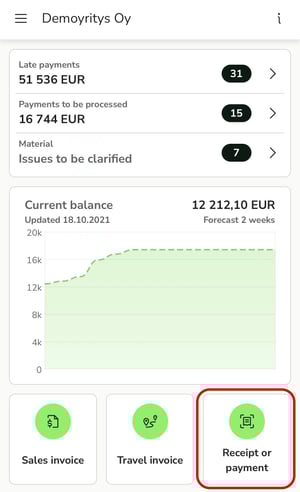
1. Select Receipt or payment from the front page of the mobile application.
2. Take a photo of the receipt or select a receipt from your phone.
3. Crop and rotate the image if necessary.
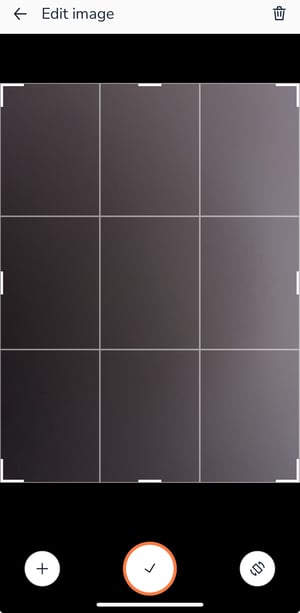
4. Add images using the + button.
5. Approve the image(s).
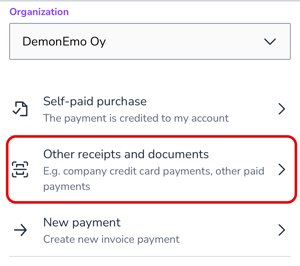
6. Check that the correct organization is selected, then select Other receipts and documents.
7. Check the voucher details, such as the amount, currency, and date.
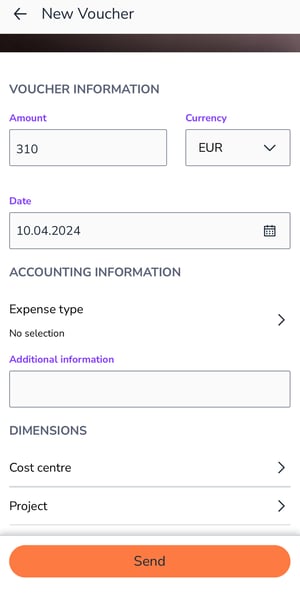
8. Select the expense type or enter additional information for accounting.
9. Add any dimensions.
10. Send the voucher.
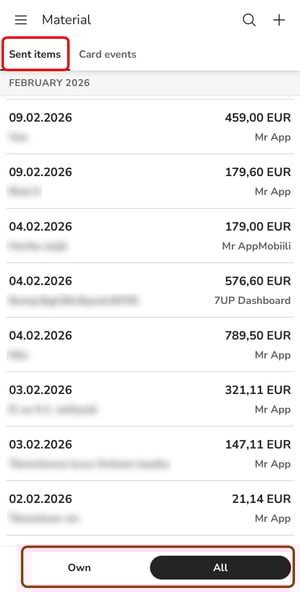
11. If you want to view the material submitted to accounting, select Material from the main menu of the mobile app.
12. Select the Sent items tab.
13. On this page, you can see all vouchers sent to accounting. You can open an individual voucher and view its image and details. Use the buttons at the bottom to choose whether to display only your own material or, depending on your access rights, also material sent by other users.