
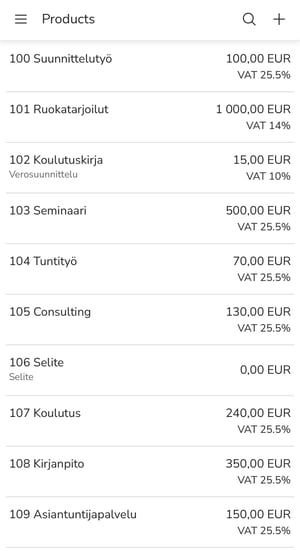
In the sales invoicing product register, you can browse and search for products and add new products to the product register.
1. Select Products from the main menu of the mobile application.
2. Add a new product by selecting + in the upper right corner.
3. Enter the product information.
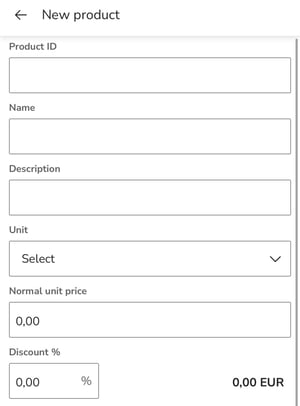
- Product ID: Maximum number of characters 30.
- Name: Maximum number of characters 45.
- Description: The description text appears below the product name on the invoice. Maximum number of characters: 1024.
- Pricing
- Unit: Select the unit from the drop-down list or enter it yourself (maximum number of characters: 14).
- Normal unit price: Tax-free unit price with a maximum of five (5) decimal places.
- Discount %: Percentage discount with two (2) decimal places without a percentage sign (e.g., 2.00).
- Default values for accounting
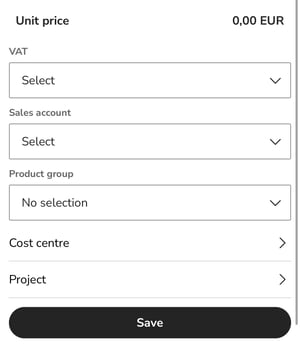
- VAT and Sales account: Default account used in the invoice row. After selecting the VAT rate, only accounts that have been created in the sales ledger with the same VAT rate can be selected in the Sales account field.
If a default sales account has been selected on the product card, it will be used as the default for accounting in the calculation rows.
- Product group: The product can be linked to one product group.
- Dimensions: If dimensions are in use, you can select the cost center, cost type, project, and project type for the product, which are used by default in the invoice rows added to the invoice.
If default dimensions are selected on the product card, they will be used by default for posting invoice lines.
4. Select Save product.
5. If you want to edit the product information, open the product from the product register front page and edit the necessary information.
6. If you want to delete the product, open the product from the product register front page and select the trash can icon in the upper right corner.