If you pay a purchase invoice received in the Easor App somewhere else, such as through online banking, mark the invoice manually as paid.
1. Open the Payments service.
2. Open the invoice by clicking on the invoice row.
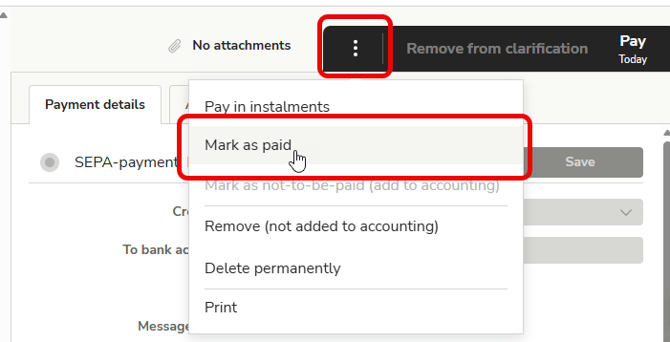
3. Select Mark as paid from the three-dot menu.
If the Mark as paid option is not available, you do not have the necessary permissions.
-
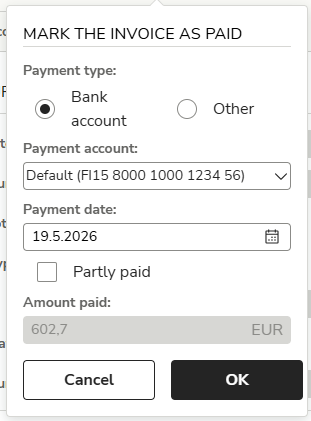
- Payment type: Select whether the invoice was paid from the company’s bank account (also select the payment account) or by another method, such as with cash.
- Payment date: Select when the invoice was paid.
- Partly paid: Select this if only part of the invoice has been paid and the remainder will be paid in the Easor App. Also enter the amount paid.
5. Finally, select OK.
6. If you paid the invoice in full, it will be moved to the In payment tab.
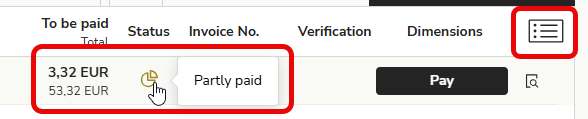
7. If you paid the invoice partly, the invoice status will show as Partly paid.
- The Waiting for payment tab displays the remaining balance and the original total amount (Note! normal view needs to be selected in the invoice list).
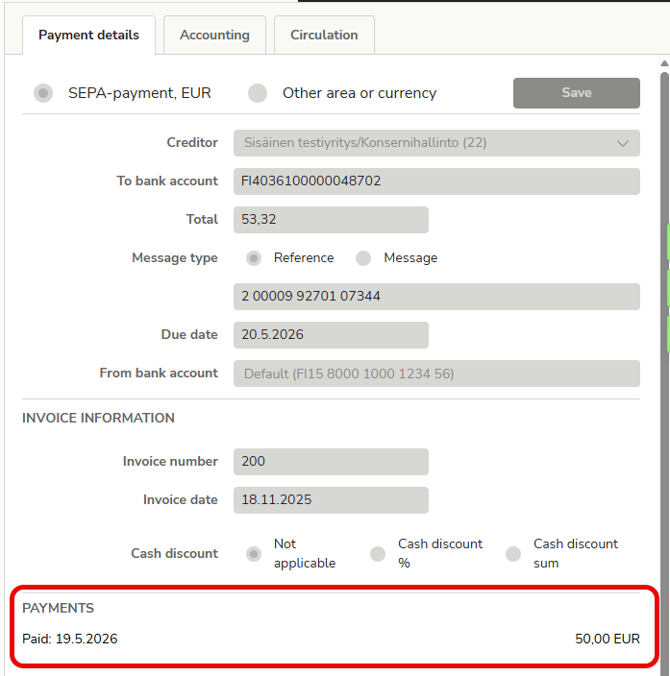
- When you open a partly paid invoice, the date and amount of the partial payment are displayed at the bottom of the Payment details tab.