
These instructions apply to the new Payments service. How do I know if I’m using the new Payments service?
If you’re using the basic version of the Payments service, go to this article.
Sometimes a foreign currency payment may fail at the bank. Possible reasons include, for example, there not being enough money in the bank account at the time of payment to cover the invoice, the bank account authorisation not being in order, or errors in the payment details, such as an incorrect account number.
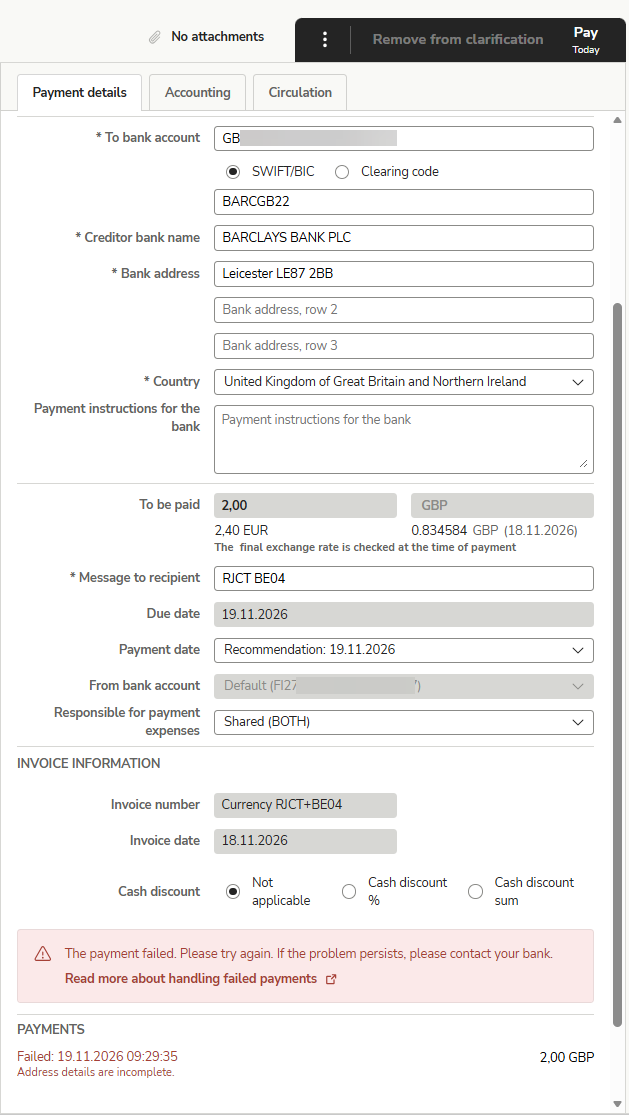
For foreign currency payments, banks require more detailed information about the invoicer and the invoicer’s bank than is required for a standard SEPA payment. The bank will only process the payment if all the required details are entered in the correct fields, so please check the details on the invoice and enter them carefully. If any mandatory details are missing from the invoice, please check with the invoicer before paying the invoice.
If a payment fails, you will receive an email notification from Easor. The email will be sent from noreply@easor.com. Failed payments are not processed automatically; you must resubmit the invoice for payment. Read the instructions on how to resubmit a failed payment.
I approved a foreign currency payment in the Invoice payment service and the payment failed
If you have approved a foreign currency invoice for payment in the old Invoices payment service and are switching to the new Payments service, the payment may fail if the payment details do not meet the requirements of the new Payments service. In that case, please do the following:
- You will receive an email notifying you that the foreign currency payment has failed.
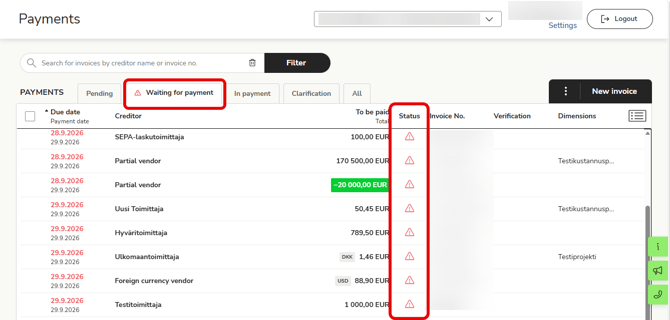
- Log in to Easor App and go to the new Payments service > Waiting for payment tab.
- A red triangle will appear next to the failed payment. Open the payment.
- Correct and complete the details on the Payment details tab and finally select Pay.
- Alternatively, you can delete the foreign currency payment from the old Invoice payment service before the payment date and make a new foreign currency payment in the new Payments service. Check that all mandatory details have been entered. Find out how to make foreign currency payments in the new Payments service.