
Once digital receipts have been activated, receipts for your credit card purchases will appear in real time in the Materials – Card events view.
Receipts are visible only to the person who activated the service with their card.
If you want to receive push notifications for incoming digital receipts, enable notifications in the Easor App settings.
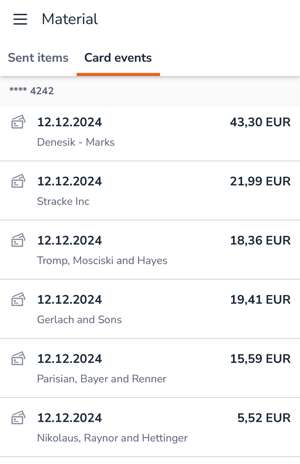
1. If you want to attach a receipt to an expense invoice, select the receipt from the list and select Self-paid purchase. Enter the expense invoice details as usual and send the expense invoice for processing.
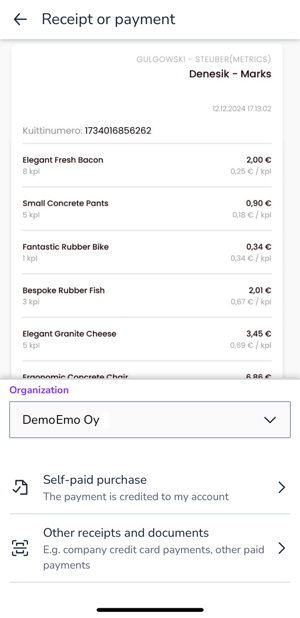
2. If you want to submit the receipt to accounting, for example as a receipt for a company credit card payment, select Other receipts and documents. Select the expense type and any dimensions and send the receipt to accounting.