
The general ledger and journal reports allow you to search for and view accounting transactions, vouchers, and account-specific information in real time.
The general ledger and journal functionality is currently in beta. We are actively developing it and collecting feedback from users.
You can use the general ledger and journal, for example, when you want to
- search for a specific voucher,
- review transactions from a specific time period,
- check the total number of vouchers for a specific time period, or
- determine what makes up an account’s balance.
The company’s admin user can view all reports and data. Access rights for other users in the company can be set on a report-by-report basis. Additionally, for standard users, only transactions related to the dimensions for which the user has been granted access can be displayed.
You can find the general ledger and journal in the Reports service of Easor App. The general ledger and journal are located on their own pages.
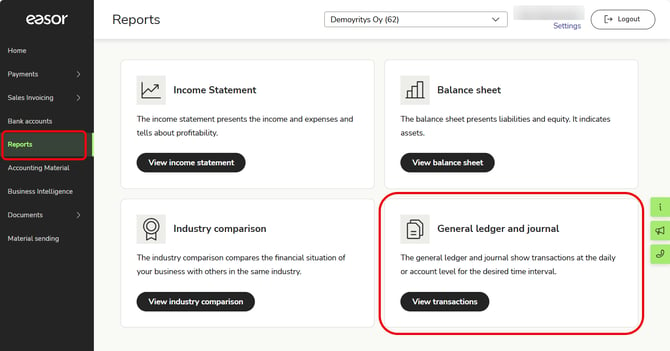
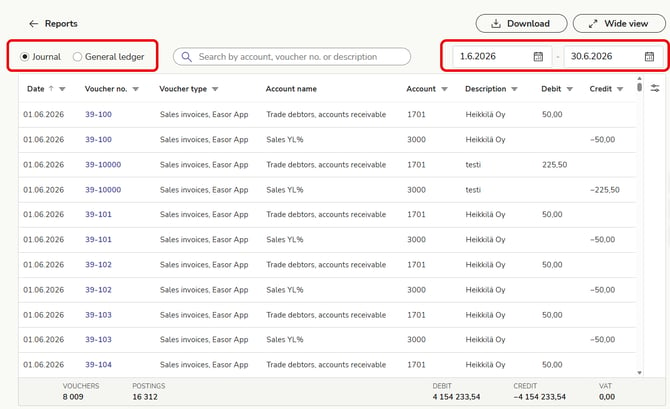
In the journal, transactions are displayed in chronological order for the selected time period.
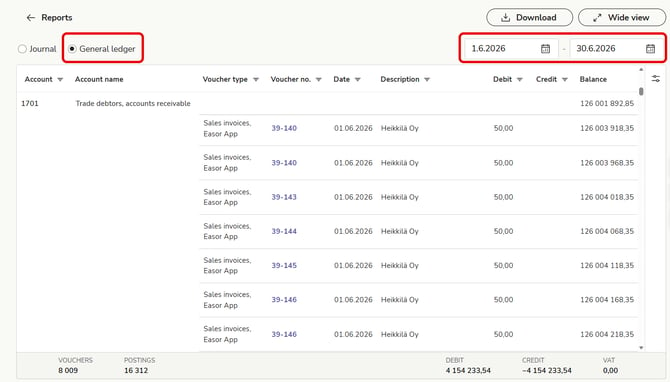
In the general ledger, you can find transactions for the selected time period grouped by accounting account.
The summary bar at the bottom of the page shows the
-
- total number of vouchers for the transactions currently displayed,
- the total number of postings,
- the total debit amount,
- the total credit amount, and
- the total VAT.
Viewing and filtering transactions
In both the general ledger and journal, you can filter columns based on the values they contain.
1. Click the icon next to the column header.
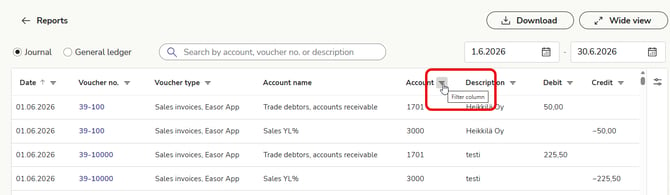
2. Enter the value to filter by or select it from the menu, then click Filter.
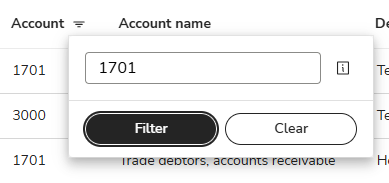
3. The transaction list is updated according to the filter. Additionally, the icon next to the column header turns green to indicate that the filter is active. You can apply a filter to multiple columns at the same time.
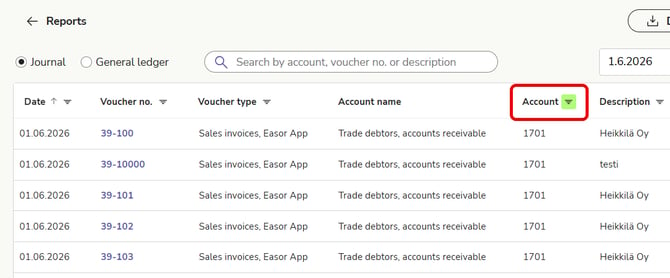
4. To remove the filter and display all events, click the green icon and select Clear.
Edit report columns
You can choose which columns to display in the general ledger and journal. This allows you to view only the information you need.
Some columns are always visible and cannot be hidden.
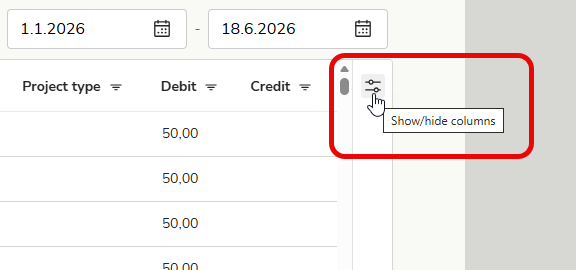
1. Click the Show/hide columns button in the upper-right corner of the table.
2. Select which columns to show and which to hide.
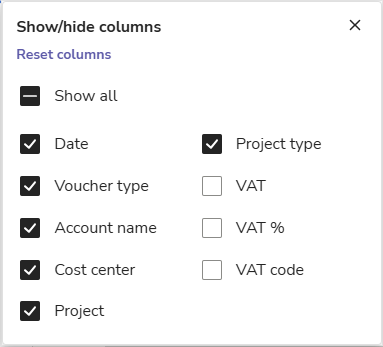
3. To restore the default columns, select Reset columns.
4. You can also reorder the columns by dragging a column from its header to a new location.
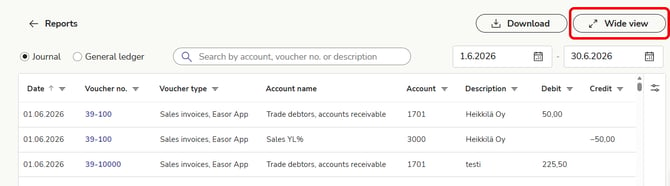
5. If you need more space for the columns, select Wide view in the top right-hand corner.
Download report
You can download general ledger and journal reports in Excel or PDF format.
The report includes events that match your current filters; that is, if you have added filters to the columns or selected a specific time period, only those events will be included in the report.
1. Make the necessary selections and apply filters to the view.
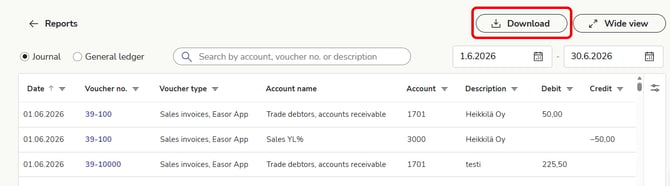
2. Select Download in the upper-right corner.
3. Choose whether you want to save the report in Excel or PDF format.