
With the Send material function, you can send material such as receipts and vouchers to accounting. The function can be found in the Material sending service.
-
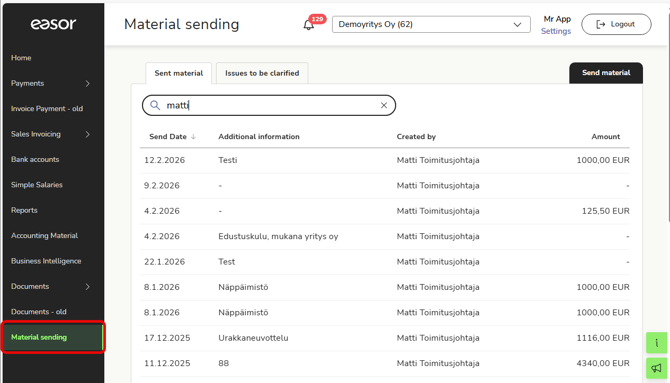
Select Material sending from the main menu of the Easor App.
-
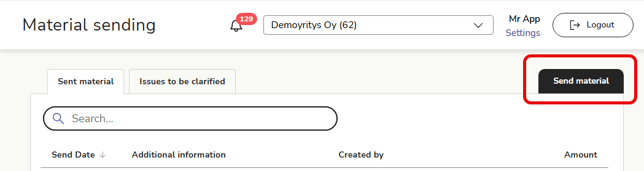
Select Send material.
-
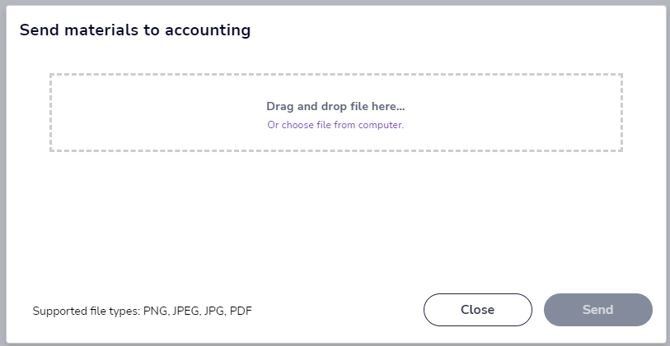
Select the files you want to send. You can upload multiple files at once. The file format must be PNG, JPG, JPEG, or PDF.
-
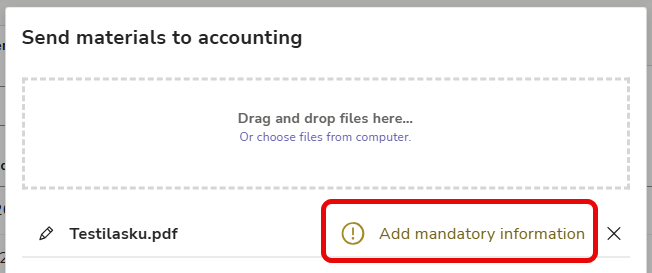
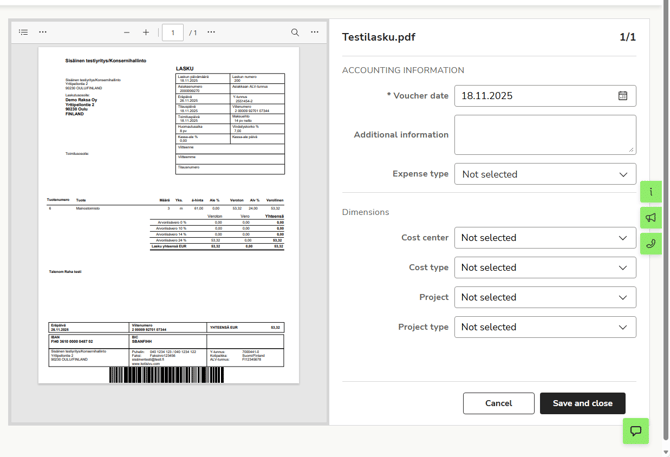
If mandatory information (e.g., dimensions) has been specified for the voucher, select Add mandatory information.
-
Enter the voucher information and select Save and close.
-
Once any mandatory information has been saved for all files, select Send.
-
On the Sent material page, you can see all the material you have sent to accounting and, depending on your access rights, also the material sent by other users. Click on a row to view the image and information for an individual voucher.