
You can make changes to the purchase invoice or payment information before making the payment. For example, you can edit the payment date, purchase invoice amount, and accounting information.
Open a purchase invoice by clicking on the invoice row, make changes by clicking on the field you want to edit, and finally select Save. You can also copy information from the invoice preview view.
Payment date
Change the payment date by selecting the desired payment date from the menu that opens.
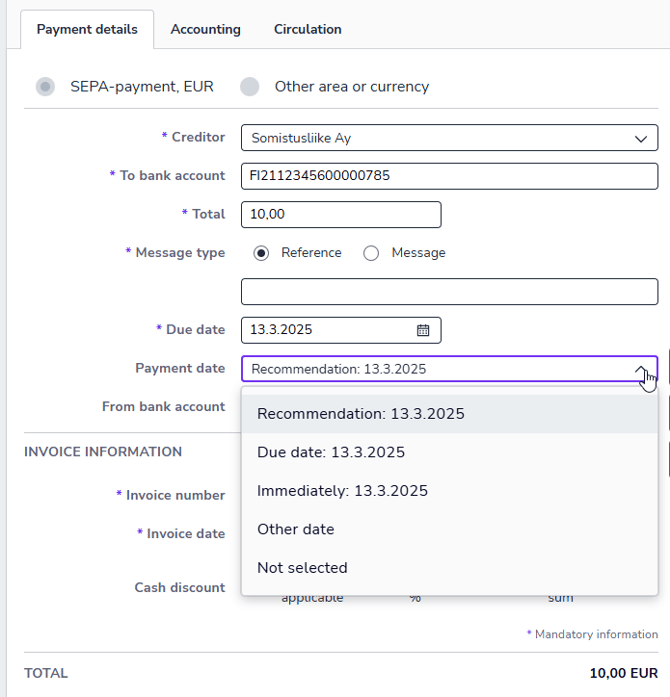
- Recommendation: Due date or cash discount due date.
- Due date
- Immediately: Same or next banking day.
- Other date: Select the desired payment date from the calendar.
- Not selected: Moves the invoice to the Waiting for payment tab.
Reference number or message
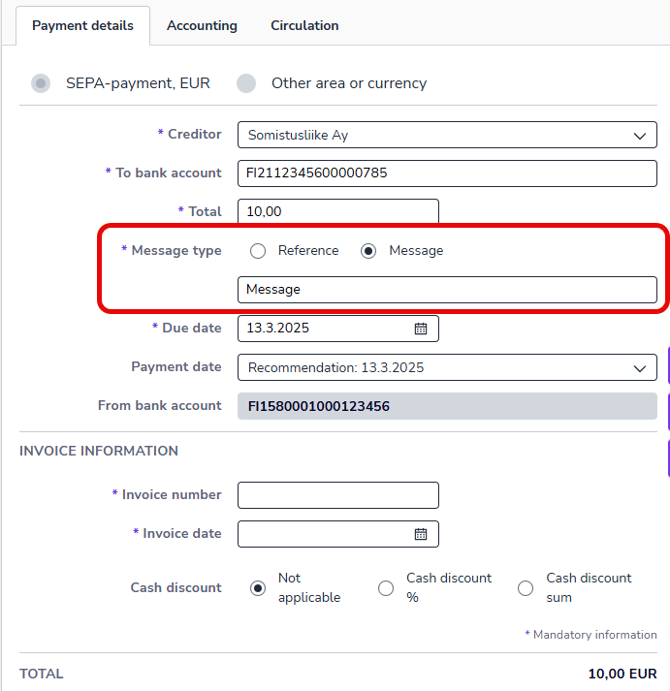
The reference number is automatically taken from the purchase invoice. If the purchase invoice does not have a reference number, select Message and enter a free-form message on the purchase invoice.
Accounting information
On the Accounting tab, you can specify the following information.
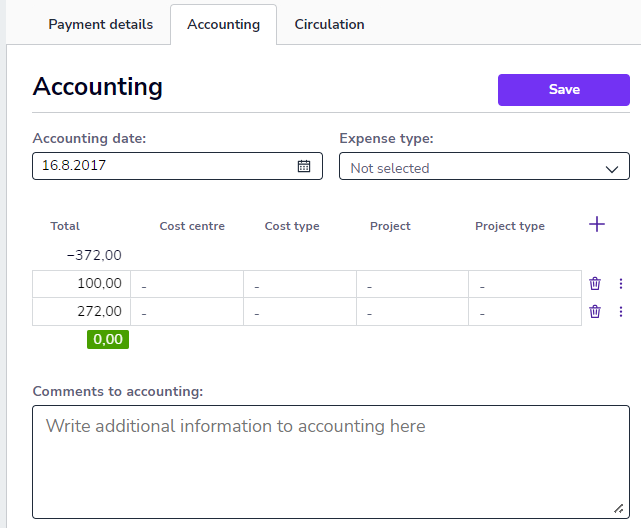
- Accounting date
- The date on which the expense is recorded in the accounting and appears on the income statement.
- Expense type
- The type of expense, such as entertainment expenses or personnel expenses.
- Comments to accounting
- Add a free-form comment to the accounting. The comment will remain visible in the purchase invoice accounting materials
- Dimensions
- If your company uses dimensions, select from the menu which dimension the purchase invoice amount will be recorded under. You can also divide the amount between several dimensions.
Circulation list
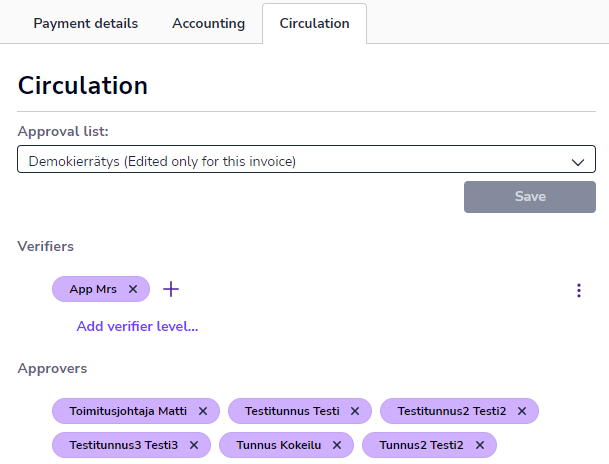
On the Circulation tab, you can select the purchase invoice circulation list and add or remove reviewers and approvers. If you want to create completely new circulation lists, you can do so via the Settings service.
If a person's name is followed by (Sub.), they have been assigned as a substitute for the original handler, and the invoice will be routed to them for the duration of the substitution.
Add attachment
You can add attachments to the purchase invoice.
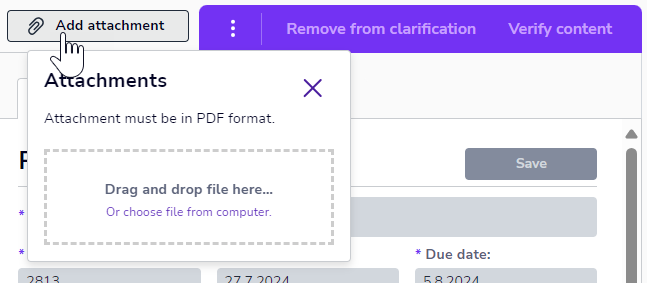
- Select Add attachment.
- Drag and drop the PDF file into the designated field or select the PDF file from your computer.
Attachments cannot be deleted or edited after the invoice has been approved. You can see the added attachments in the invoice preview view.
Add comment
You can add comments to a purchase invoice. Comments are visible to everyone who has the right to view the invoice. Comments are not official accounting documents. You can find the comment field at the bottom of the Circulation tab.
The comment shows the name of the person who added the comment, as well as the date and time it was created.
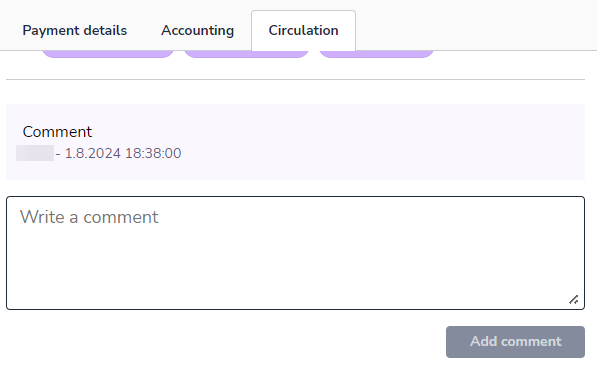
If a comment has been added to the invoice, a comment icon is displayed in the header of the Circulation tab and in the Payments view on the invoice row.
Mark for clarification
If a purchase invoice contains unclear information that requires clarification from the invoice supplier, you can mark the purchase invoice for clarification.
-
Open the purchase invoice.
-
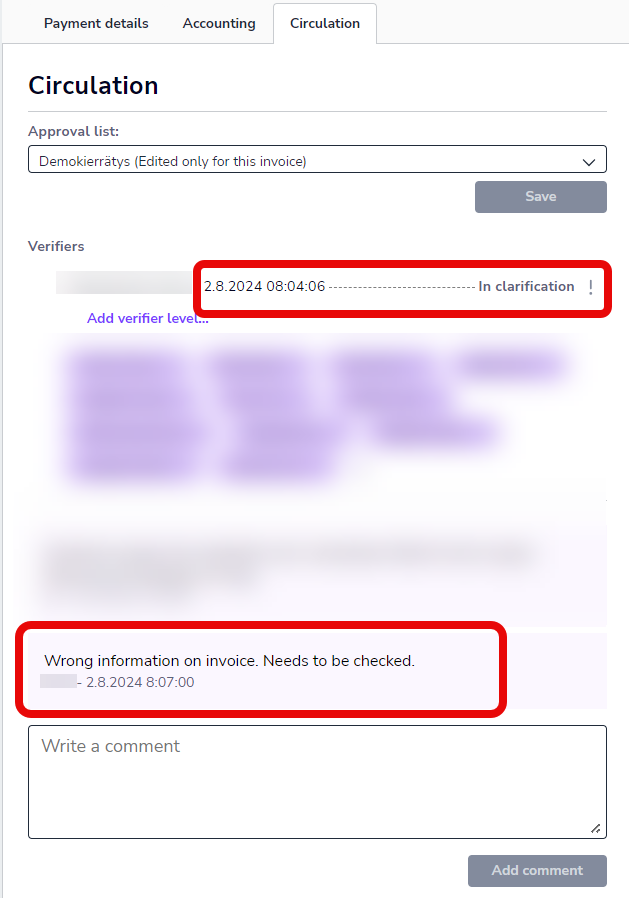
Select Mark for clarification from the upper right corner. The program will mark the purchase invoice for clarification and open the Circulation tab, where you can write a comment about the clarification.
-
The purchase invoice will be moved to the Clarification tab.
-
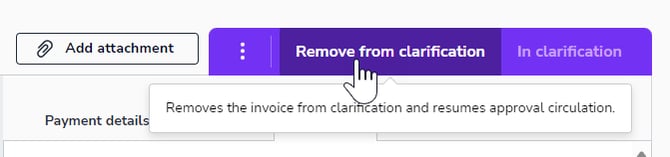
The purchase invoice will be suspended from circulation until one of the users on the invoice circulation list removes the purchase invoice from clarification by selecting Remove from clarification.
-
After this, the purchase invoice will continue its normal circulation.