
Manual delivery allows you to check and edit the recurring invoice details before sending. The manual sending method requires you to remember to send the created invoices before the due date.
1. Select New recurring invoice to open a blank recurring invoice template.
2. First, specify the basic information for the invoice template, such as the name and start date.
3. Define the recurrence settings for the invoice. Select Manually as the sending method.
4. Select the customers for whom the invoices will be created.
5. Add product rows.
6. Select Enable.
7. Recurring invoices are created and displayed on the Manually sent tab. At this stage, the invoices can still be edited.
8. Select one or more invoices and select Send. The selected invoices are sent using the customer's default billing method (defined in the customer register) and the next invoice is created according to the invoice template settings.
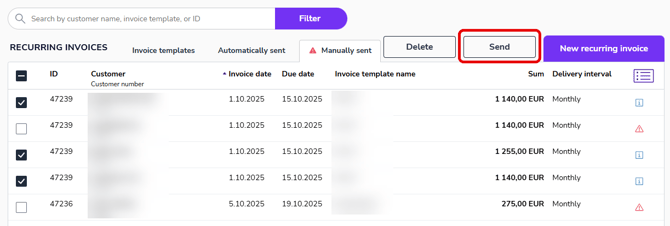
9. Sent invoices are transferred to the Invoices view in Sales Invoicing.
If the invoice is sent as an e-invoice or via a mailing service, the invoice will appear in Scheduled sending status and you can edit the invoice until 8:00 p.m. The e-invoice is sent to the customer immediately.
10. Instead of sending, you can also delete the created invoice, in which case it will be removed from the system and the next invoice will be created according to the settings.
11. If the invoice template is valid indefinitely, terminate the invoice template when you no longer need to create new recurring invoices.