
You can edit the payment date of a purchase invoice until the payment is sent to the bank. Changing the payment date is done slightly differently depending on whether the invoice has already been sent for payment.
Changing the payment date after the invoice has been sent for payment
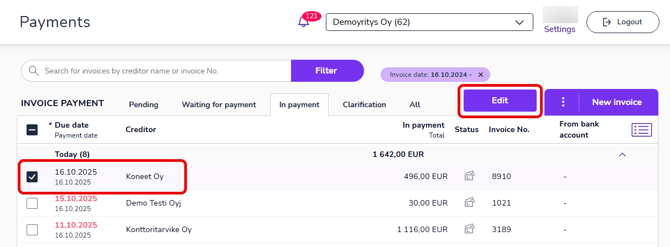
Once the invoice has been sent for payment, you can change the payment date on the In payment tab.
You can't change the payment date after the payment has been sent to the bank (the payment status will show as In bank or Paid).
- Select the invoice or invoices whose payment date you want to change from the list.
- The Edit button will appear in the upper right corner. If you do not see the Edit button, make sure you have selected at least one invoice.
- In the Edit selected dialog, select Change payment date.
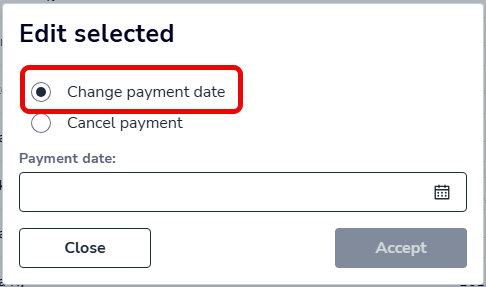
- Select a new payment date and then select Accept.
Editing the payment date before payment
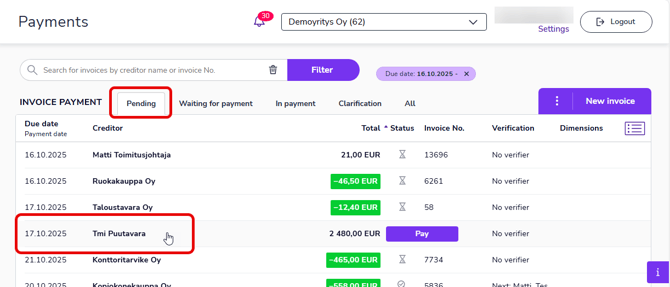
Before the invoice is sent for payment, the payment date can be edited in the Pending tab.
- Open the invoice you want to edit by clicking on the invoice row.
- Go to the Payment details tab.
- Select the desired payment date from the Payment date menu.
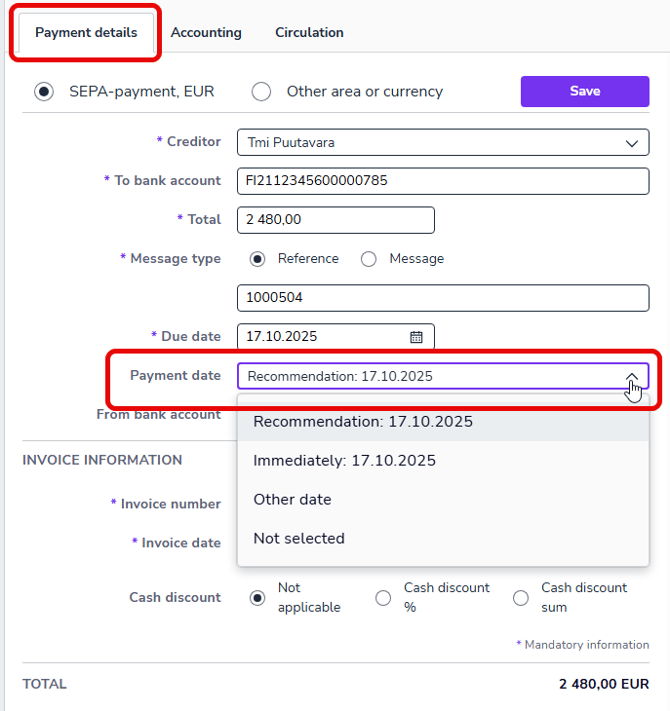
- Recommendation: Due date or cash discount due date.
- Due date
- Immediately: Same or next bank day.
- Other date: Select the desired payment date from the calendar.
- Not selected: Moves the invoice to the Waiting for payment tab.
- Finally, select Save. The invoice payment date has now been changed.