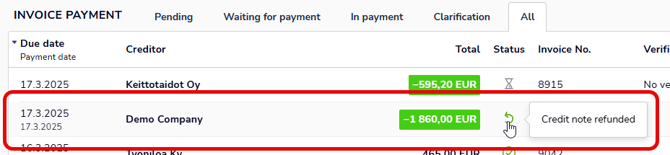
- Open a credit note by clicking on the invoice row in the Payments view. You can recognize a credit note by its negative amount.
- Edit the credit note details if necessary
- Select Use credit note in the upper right corner.
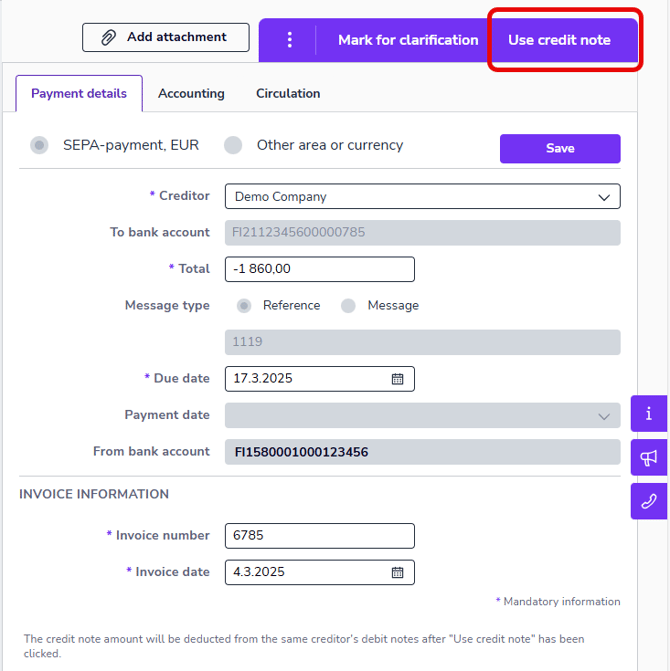
- The program will deduct the credit note amount from the next purchase invoices from the same supplier.
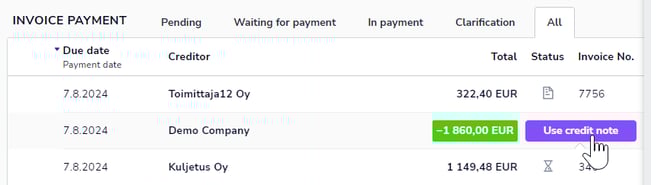
- You can also select Use credit note from the invoice row in the Payments view.
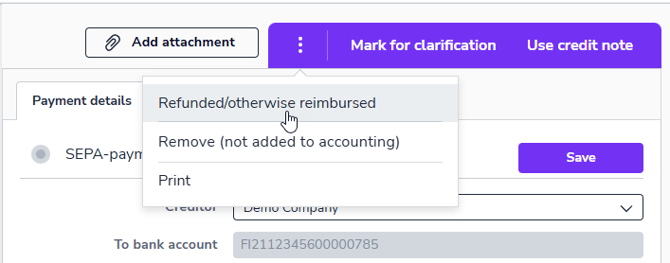
- If you do not want to allocate the credit note to any purchase invoice, but want the money to be refunded to your account, select Refunded / Otherwise reimbursed from the three-dot menu.
- Select the date on which the credit note will be marked as refunded and select Continue.
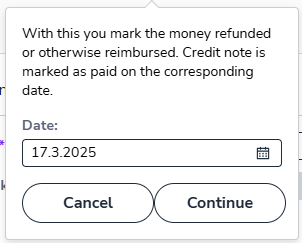
- The credit note will be marked as refunded.