-
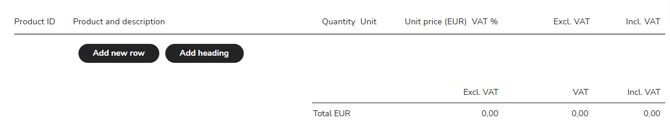
Select Add new row in the invoice template.
-
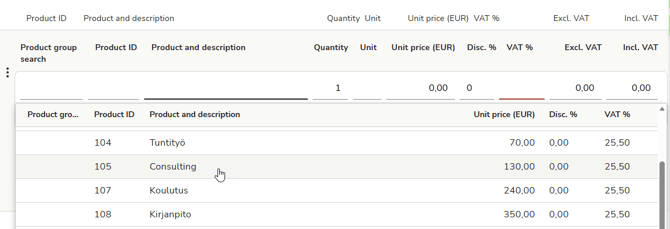
Select the product/service from the product register.
-
If there are many products, use the product group search. Select a product group in the Product group search column, and only the products in the selected product group will be displayed in the Product and description column. If you add multiple product rows to the same invoice, the program will remember the selected product group. Read more about creating product groups.
-
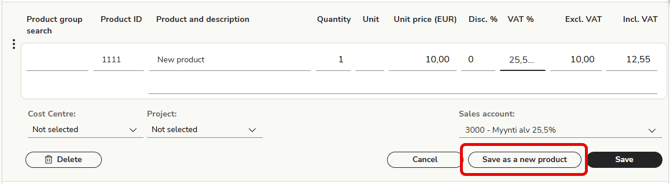
If the product cannot be found in the product register, enter the product information in the fields. Mandatory information is marked in red. Save the product in the product register by selecting Save as a new product.
-
Save the product row by selecting Save or press Enter to add a new invoice row.
-
To delete a product row, open the row and select Delete from the left side of the row.
-
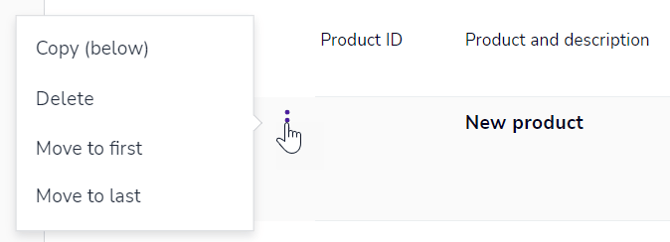
From the three-dot menu on the left side of the invoice row, you can copy and delete the row, as well as move the row to the first or last position. You can also drag the row to the desired location with the mouse.
-
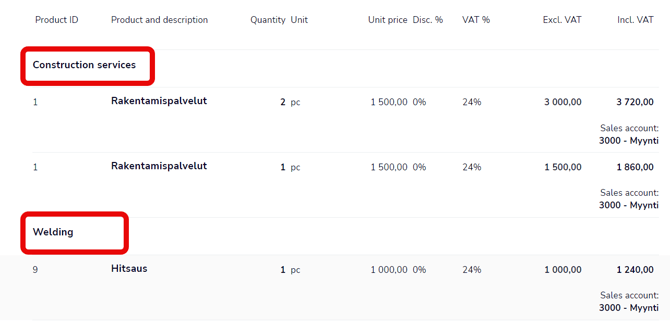
In addition to product rows, you can add headers to the invoice. Select Add header and enter the header text. You can drag the header row to the desired location.