
Purchase invoices arrive to the Easor App as e-invoices and from the scanning service, but you can also add a new purchase invoice manually to the Payments service.
- Open the Payments service.
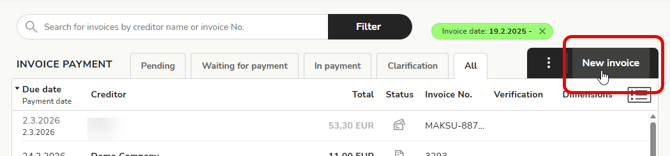
- Select New invoice in the upper right corner.
- Drag and drop the PDF file of the purchase invoice into the view or select the file from your computer.
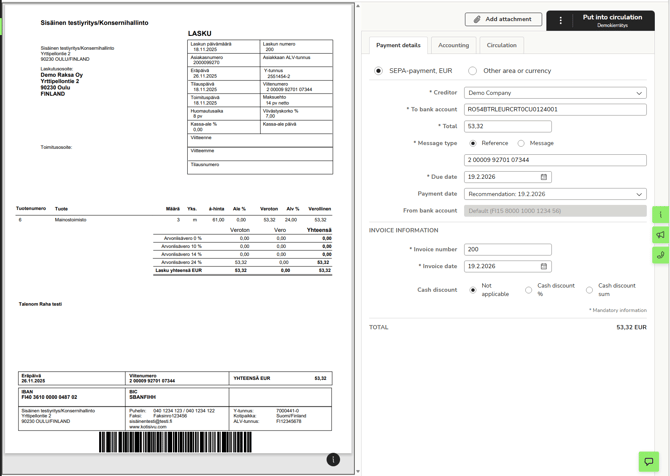
- Select the creditor from the menu or fill in the creditor details manually. Easor App fills in the basic information based on the creditor details (bank details) if purchase invoices from the same supplier have been previously received in the Easor App.
- Fill in the purchase invoice details marked with an asterisk (*). You can copy the information from the invoice preview view.
- You can add dimensions to the purchase invoice from the Accounting tab.
- From the Circulation tab, you can define a circulation list for the purchase invoice. Purchase invoices are automatically added to the default circulation list.
- You can either pay the purchase invoice directly, approve its contents, or put it into circulation. You can then find the purchase invoice that has been put into circulation in the Pending tab. The system automatically recognizes whether you are next in line on the circulation list as either a reviewer or a payer.
- After being sent for payment, the purchase invoice is moved to the In payment tab.