
Add a message to a sales invoice
You can add an invoice-specific or customer-specific message to a sales invoice.
- To add a message to a sales invoice, click the Add message button at the bottom of the sales invoice.
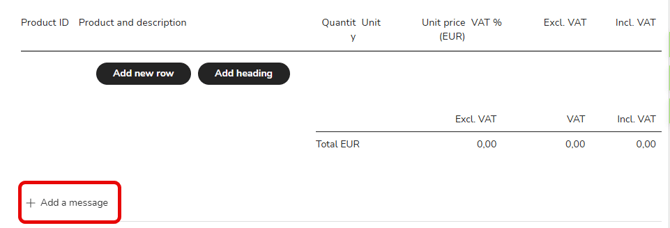
- Two fields will open at the bottom of the invoice: Invoice-specific message and Customer-specific message.
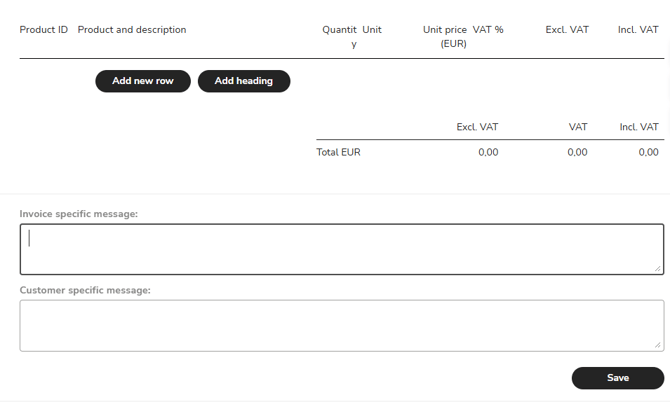
- Invoice-specific message - In this field, you can add an invoice-specific message that will only be displayed on this invoice.
- A message is automatically copied from the customer card to the Customer-specific message field. By default, the message is displayed on all invoices sent to the customer, but you can edit or delete the message for each invoice.
- Select Save to save the messages to the sales invoice.
Add an attachment to the sales invoice
You can add attachments to the sales invoice, such as timesheets or a breakdown of expenses.
- Select Add attachment at the top of the invoice view.
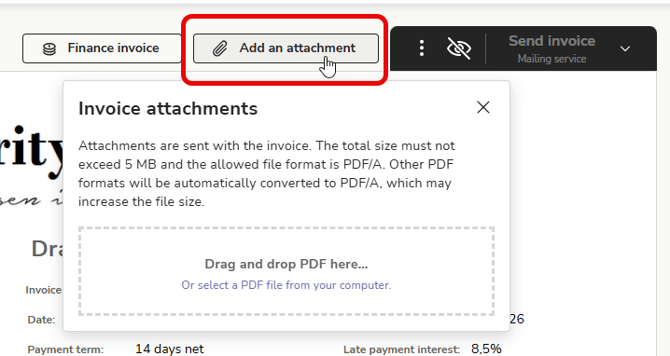
- Attachments must be in PDF/A format, and the total size of the attachments cannot exceed 5 MB. Please note that if the attachments are regular PDF files, they will be converted to PDF/A format, which may increase the file size.
- Press the button again to open or delete attachments. Attachments cannot be deleted or edited after the invoice has been sent.