
Transactions for which no voucher or explanation has been submitted to the accounting department are recorded in the clearing account.
The clearing account is visible to users who have access to the performance monitoring clearing account.
1. Select Material from the main menu of the mobile app.
2. Select the Clearing account tab at the top.
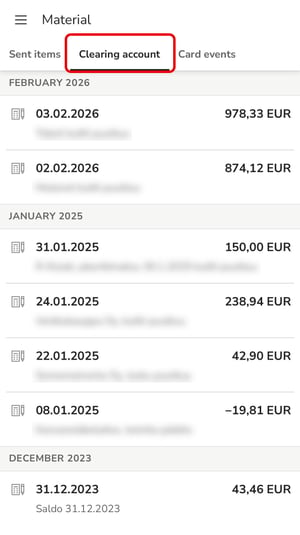
3. Select the transaction to be cleared from the list.
4. Select Add receipt and add a receipt to the transaction by taking a photo or uploading an image or PDF file from your phone's gallery.
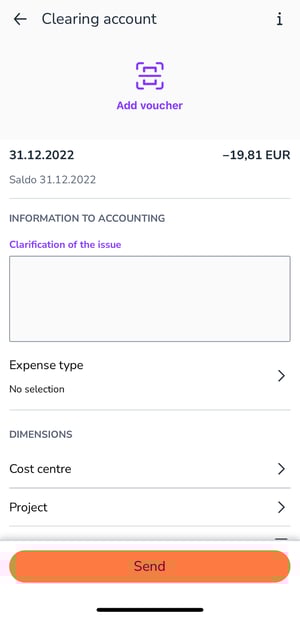
5. If no receipt is available, enter an explanation for the transaction in the Clarification of the issue field.
6. Select Expense type.
7. Add any dimensions.
8. Send the receipt.