
Upload to Archive view is intended for accounting office users for simultaneous processing and archiving of multiple documents. Documents may be imported automatically from other Easor services, but you can also add them yourself.
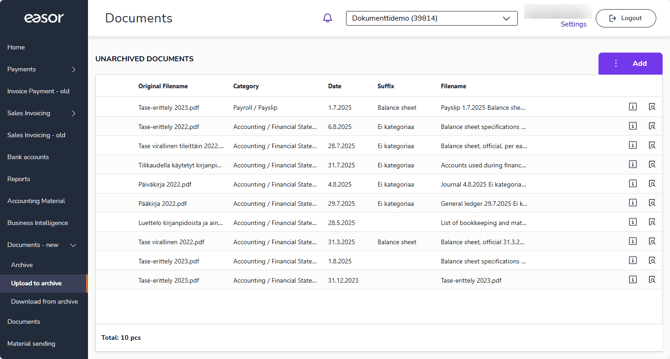
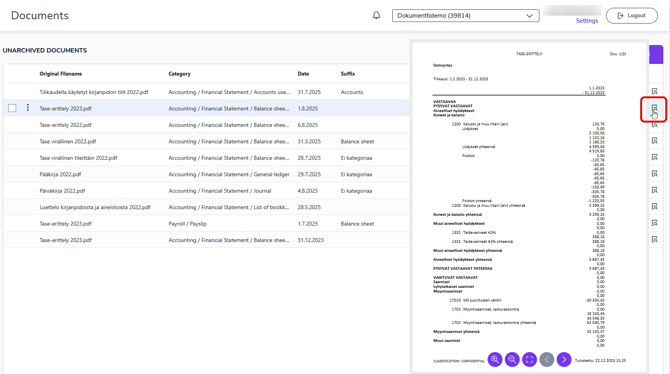
Preview documents by moving the mouse cursor over the preview icon on the right side of the row or open the document in a new tab by clicking on the file name. The info icon shows you the viewing rights for the document.
Add viewing rights
Add viewing rights by selecting the documents for which you want to grant viewing rights to specific users.
- Select the documents for which you want to grant viewing rights to specific users.
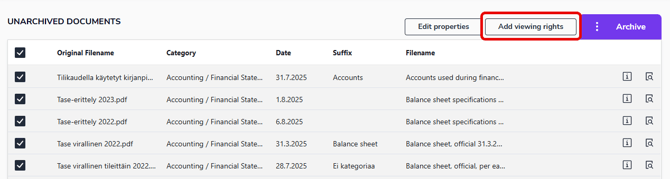
- New buttons will appear at the top. Select Add viewing rights.
- In the Add individual viewing rights dialog, you can edit the viewing rights for documents. Please note that the changes will apply to all selected documents.
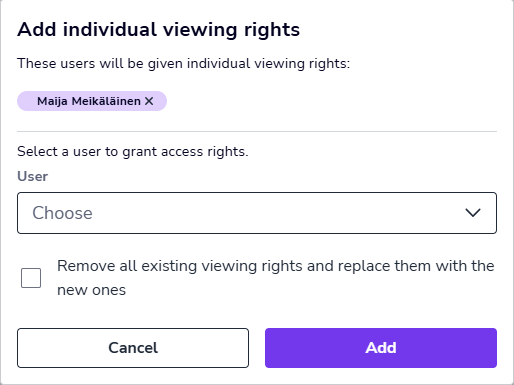
- From the User menu, select the users who will be able to view all selected documents.
- Select Remove all existing viewing rights and replace them with the new ones if you want to remove all old viewing rights.
- Finally, select Add.
- You can view the viewing rights for a document from the info icon.
Edit document information
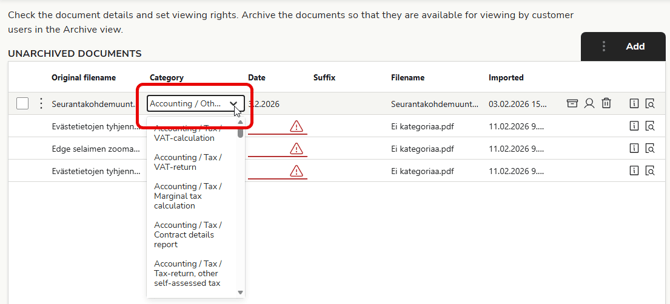
To edit document information, click the field you want to edit. Update the information and click outside the field to save the information automatically.
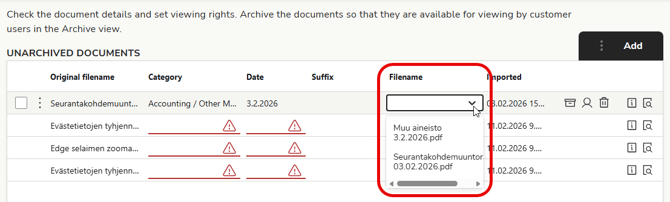
By selecting the file name, you can choose whether the file name displayed in the archive view is a combination of category, date, and description, or whether the original file name is used.
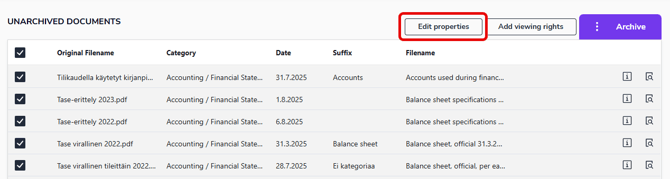
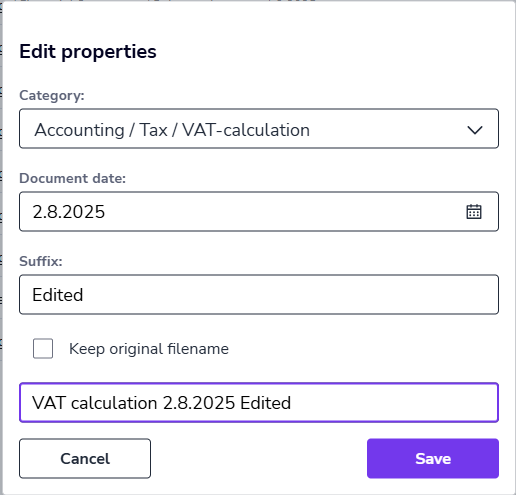
You can also edit the information for multiple files at once. Select one or more documents. New buttons will appear at the top. Select Edit Properties.
Archive documents
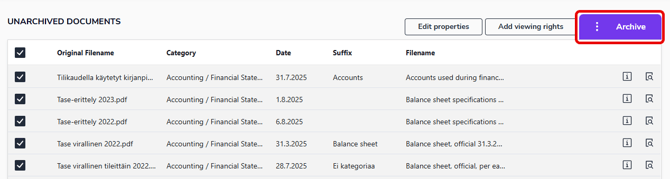
To archive documents, select one or more documents. The Add button changes to the Archive button. Select Archive.
In the Archive Documents dialog, you can view the viewing rights for the documents and edit the rights for individual documents. From the User menu, select the person to whom you want to add viewing rights or remove the selected person from the check box next to their name. Role-based viewing rights cannot be edited.
Please note that the changes only apply to the document you have selected from the list. If you want to make changes to multiple documents at once, see the section Add viewing rights.
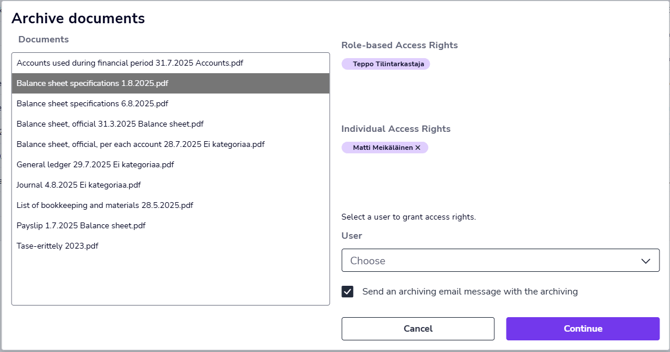
If you want to send an email notification about the archiving of a document, select Send email notification when archiving and select Continue. If you do not want to send an email notification, deselect the option and select Archive.
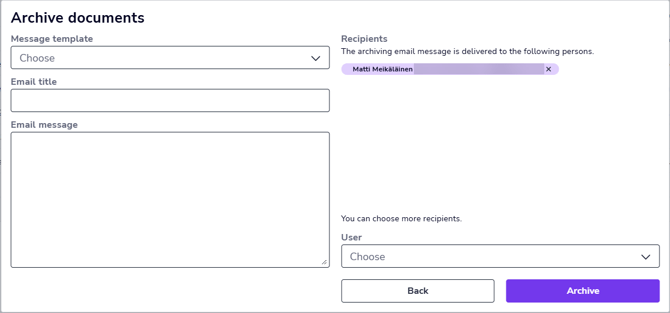
By default, the email notification is sent to the people who have been granted viewing rights for the document, but you can add and remove recipients at this stage. Select one of the ready-made message templates and finally select Archive. The documents are archived and an email message is sent to the selected persons.