---
title: Send material
description: This article explains how you can send material such as receipts and vouchers to accounting in Easor App.
---
[Skip to content](https://help.easor.com/en/easor-app-send-material#main-content)
- [English](https://help.easor.com/en/easor-app-send-material)
- [Suomi – Suomi](https://help.easor.com/fi-fi/lähetä-aineistoa)
English
Show submenu for translations
[](https://help.easor.com/fi-fi?hsLang=en)
Open main navigation
Close main navigation
- - [English](https://help.easor.com/en/easor-app-send-material)
- [Suomi – Suomi](https://help.easor.com/fi-fi/lähetä-aineistoa)
English
Show submenu for translations
- [Easor App -koulutus torstaisin klo 13](https://easor.clickmeeting.com/easor-app-koulutus)
[Easor App -koulutus torstaisin klo 13](https://easor.clickmeeting.com/easor-app-koulutus)
How can we help you?
- There are no suggestions because the search field is empty.
1. [Suomi](https://help.easor.com/en?hsLang=en)
2. [Material sending](https://help.easor.com/en/material-sending?hsLang=en)
February 24, 2026
# Send material
## This article explains how you can send material such as receipts and vouchers to accounting in Easor App.
With the **Send material** function, you can send material such as receipts and vouchers to accounting. The function can be found in the **Material sending** service.
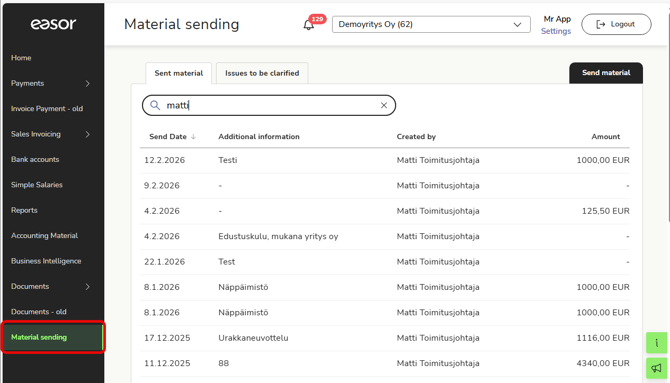
1. Select **Material sending** from the main menu of the Easor App.
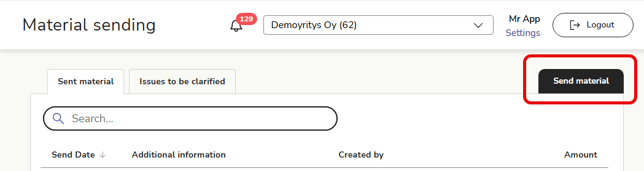
2. Select **Send material**.
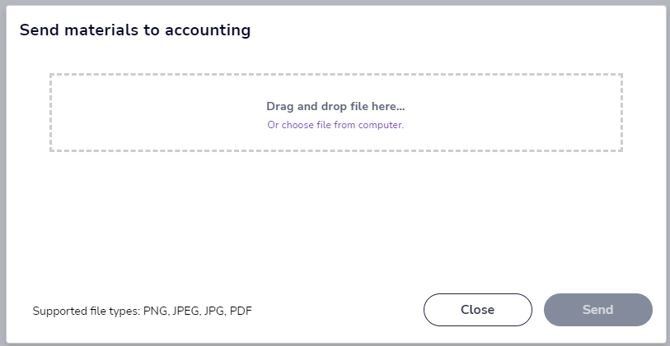
3. Select the files you want to send. You can upload multiple files at once. The file format must be PNG, JPG, JPEG, or PDF.
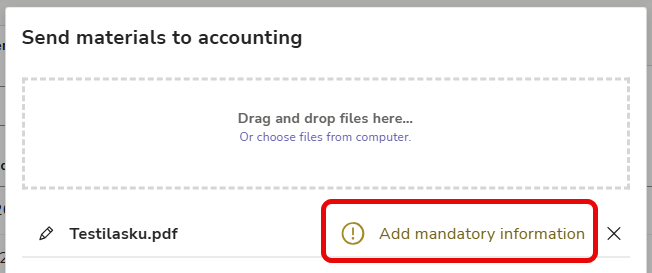
4. If mandatory information (e.g., dimensions) has been specified for the voucher, select **Add mandatory information**.
5. Enter the voucher information and select **Save and close**.
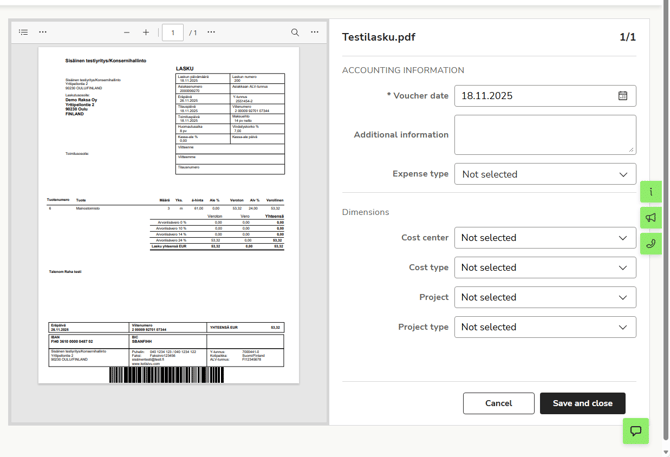
6. Once any mandatory information has been saved for all files, select **Send**.
7. On the **Sent material** page, you can see all the material you have sent to accounting and, depending on your access rights, also the material sent by other users. Click on a row to view the image and information for an individual voucher.
- [Release notes and product news](https://help.easor.com/en/release-notes-and-product-news?hsLang=en)
- [Service status updates](https://help.easor.com/en/service-status-updates?hsLang=en)
- [Support](https://help.easor.com/en/support?hsLang=en)
- [Home page](https://help.easor.com/en/home-page?hsLang=en)
- [Documents](https://help.easor.com/en/documents?hsLang=en)
- [Easor App mobile](https://help.easor.com/en/easor-app-mobile?hsLang=en)
- [Payments](https://help.easor.com/en/payments?hsLang=en#main-content)
- [New Payments service](https://help.easor.com/en/payments?hsLang=en#new-payments-service)
- [Sales invoicing](https://help.easor.com/en/sales-invoicing?hsLang=en)
- [Recurring invoicing](https://help.easor.com/en/recurring-invoicing?hsLang=en)
- [Bank accounts](https://help.easor.com/en/bank-accounts?hsLang=en)
- [Reports](https://help.easor.com/en/reports?hsLang=en#main-content)
- [General ledger and journal](https://help.easor.com/en/reports?hsLang=en#general-ledger-and-journal)
- [Simple Salaries](https://help.easor.com/en/simple-salaries?hsLang=en)
- [Material sending](https://help.easor.com/en/material-sending?hsLang=en)
- [Settings](https://help.easor.com/en/settings?hsLang=en)
- [General](https://help.easor.com/en/general?hsLang=en#main-content)
- [VAT](https://help.easor.com/en/general?hsLang=en#vat)
[](https://easor.com/fi/?hsLang=en)
## Asiaa asiakaspalveluun?
Palvelemme arkisin klo. 7:00–21:00.
📞 0207 525 110
✉️ [asiakaspalvelu@easor.com](mailto:asiakaspalvelu@easor.com)
[mailto:asiakaspalvelu@easor.com](mailto:asiakaspalvelu@easor.com)
Copyright © 2026 Easor