
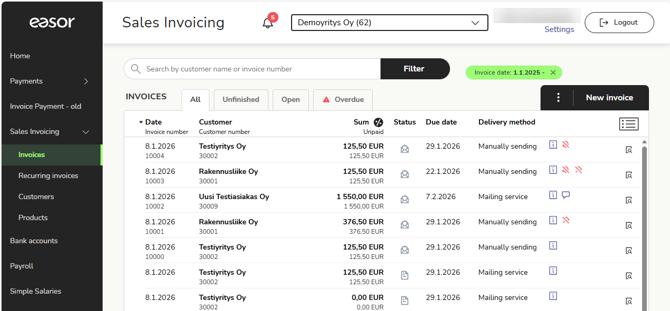
On the Invoices page, you can see a list of customer invoices in the system. By default, all customer invoices are displayed, but you can switch tabs to view unfinished, open, or overdue customer invoices.
On the invoice row, you can see more detailed information about each invoice and click the invoice row to open an invoice.
- Status indicates whether the sales invoice is, for example, unfinished, paid, or in debt collection.

Unfinished The sales invoice is unfinished and unsent. 
Sent The sales invoice has been sent. The invoice can no longer be edited. 
Scheduled sending The sales invoice has been sent. E-invoices, paper invoices and invoices to be delivered manually will appear in 'Scheduled sending' status until 8.00 PM, during which they can still be edited. After 8.00 PM, the status of the invoices will change to 'Sent'. 
Paid The sales invoice has been paid. 
Overdue Payment for the sales invoice is overdue. 
Reminder sent One or two payment reminders have been sent for this sales invoice. Hover your mouse over the icon to see more details about the reminders. 
In debt collection The sales invoice is in debt collection. - The Financing icon
 below the due date indicates that invoice financing is enabled for the sales invoice. Click the icon to convert the sales invoice into a financing invoice. If your company does not have invoice financing, click the Get paid instantly icon
  for more information.
 - Delivery method indicates how the sales invoice has been sent: as an e-invoice, by email or via a mailing service (letter). The manual sending method means that the sales invoice has not been sent to the customer from the system.
- Icons next to the delivery method:
-
 The sales invoice has a payment reminder and collection block which means that you cannot send payment reminders to the customer or transfer the overdue payment into debt collection.
 - The sales invoice has an attachment
 or a comment
  .
.
-
- The i-icon shows information about the sales invoice, such as payments received on the invoice, when the invoice was sent, and the sender of the invoice.
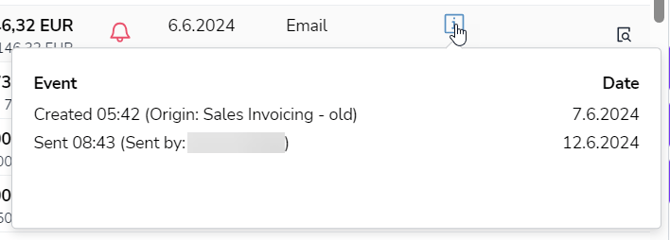
- If the currency of the sales invoice is other than Euro (EUR), the invoice currency is displayed next to the amount.

To sort customer invoices in ascending or descending order, click the column headers.
To see the total sums of sales invoices, including or exempt from tax, click the % sign in the Sum column.
Click the Compact/Normal view icon  to show/hide information on the rows.
In the Invoices view, you can add a comment and a reminder or collection block to a sales invoice by clicking the three-dot menu on the invoice row. From the same menu, you can create a credit note for a sales invoice, delete an unfinished invoice, and copy or send an invoice.
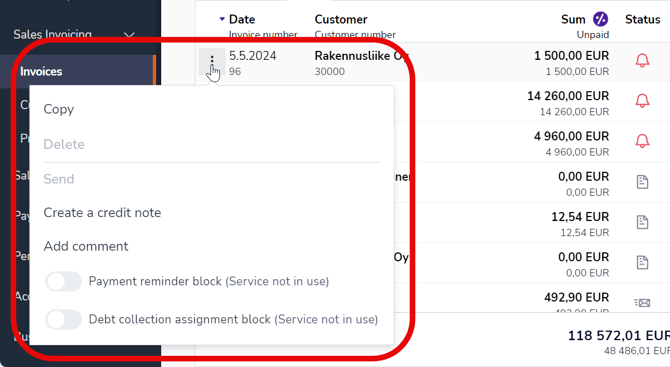
Search
At the top of the Invoices view, you'll find a search field where you can do a quick search with customer name or invoice number. The application lists sales invoices that match your search.
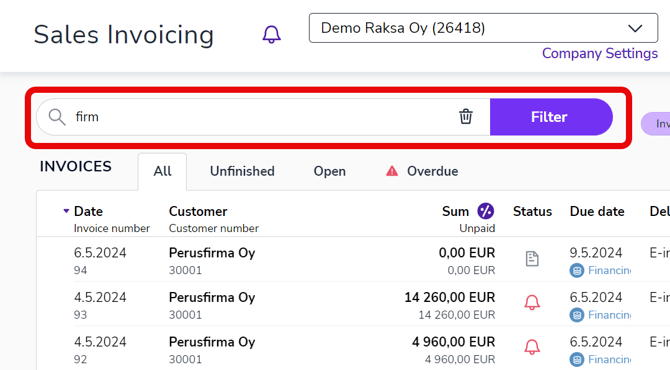
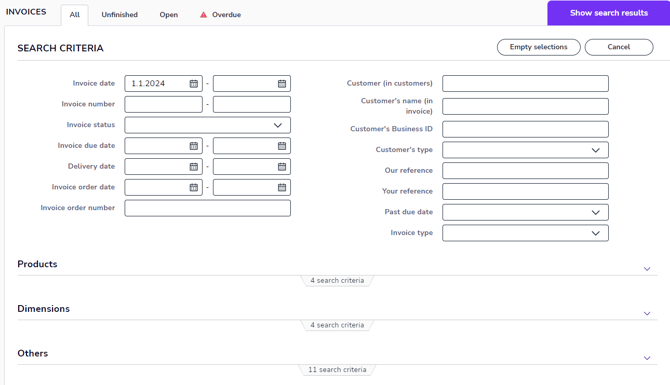
For more in-depth searches, click Filter.
-
Fill in the search criteria you want and select Show search results. For example, you can search for invoices for which a payment reminder has been issued by selecting the invoice status 1. reminder or 2. reminder.
-
The application lists sales invoices that match your search.
-
At the top of the page, you'll see the search criteria that are in use. You can remove search criteria by clicking the x in the filter.

-
The Total section at the bottom of the page shows the total number of sales invoices, invoiced amount, and unpaid amount that match your search.