Invoice templates
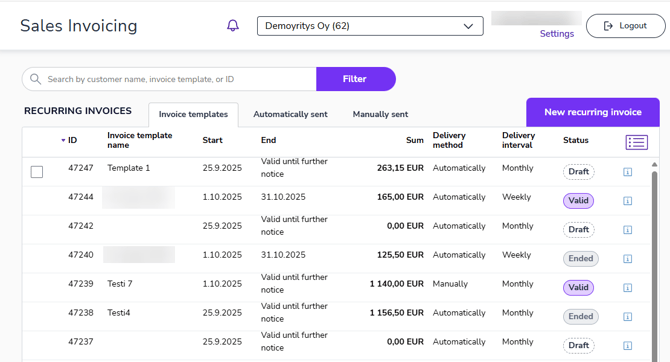
In the Invoice templates view, you can see all the invoice templates you have created, their details, and their status (draft, active, expired). By default, draft and active invoice templates are displayed.
In the search field, you can search for invoice templates using various search criteria.
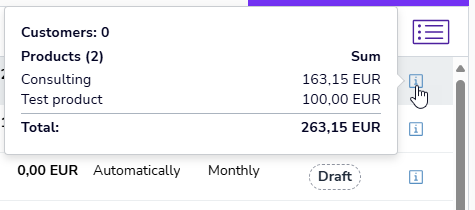
The info icon in the last column shows you how many customers and what products the invoice template has.
Automatically sent and Manually sent tabs
The Automatically sent and Manually sent tabs show all invoices created from invoice templates that have not yet been sent to the customer.
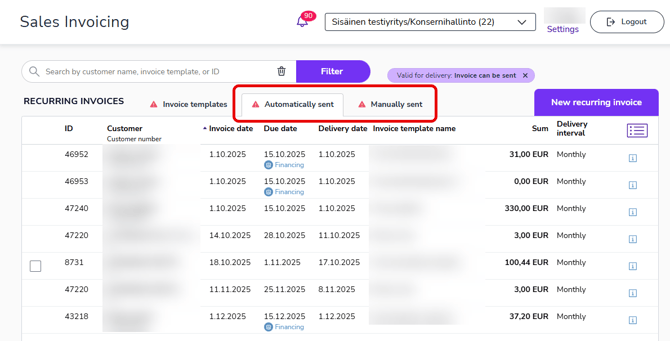
Automatically sent invoices are sent automatically at the specified sending time. Manually sent invoices must be sent manually. You can select multiple invoices from the list and send them all at once.
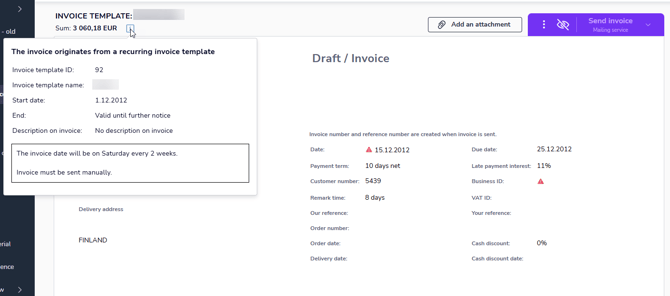
You can open individual invoices and make changes to them or add attachments. The info icon shows you which invoice template the invoice was created from and the invoice template settings.
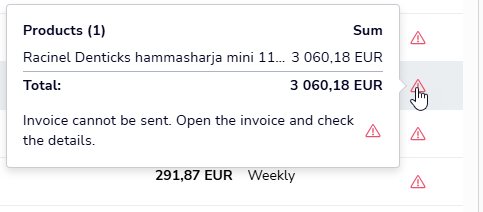
If there is a red triangle in the last column, there are errors in the invoice details or there are problems with sending the invoice. Move the mouse cursor over the triangle to see more information. The triangle is also displayed in the tab header if there are invoices on the list that require action.