In the Download from archive view, you can download all the data for an entire accounting period to your computer, for example, if you are changing your accounting software.
Accounting firm users and customer users with archive download rights have access to the archive download.
Please note that the downloaded material must be stored securely for the statutory period and no changes may be made to the material.
The material is divided into two sections: accounting and payroll.
- The downloadable material for accounting includes all documents from the main categories Administration and Organisation, regardless of date. Documents from other categories are included in the material with a date range corresponding to the selected period.
- The material to be uploaded for payroll accounting is separate and is not included in the material to be uploaded for accounting. The payroll accounting material includes all documents in the main category Salaries with a date range corresponding to the selected period.
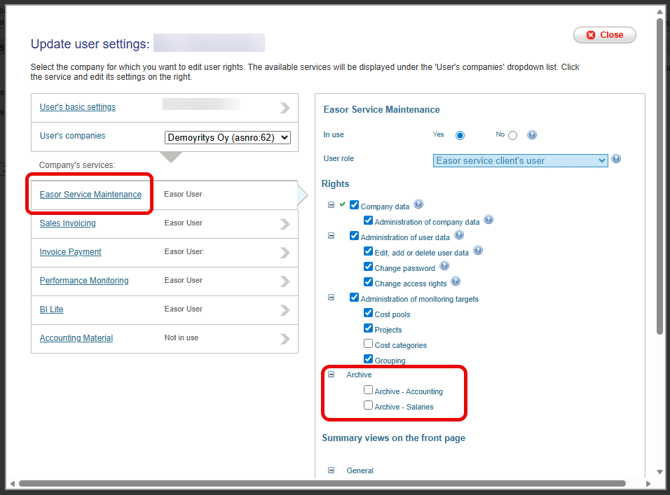
The company's administrator can manage archive download rights. Select Settings – User management in the upper right corner of the Easor App. Move the mouse over the user's name and select Edit user information. Select Easor Service Maintenance on the left and Archive service – Accounting and Archive service – Salaries settings on the right.
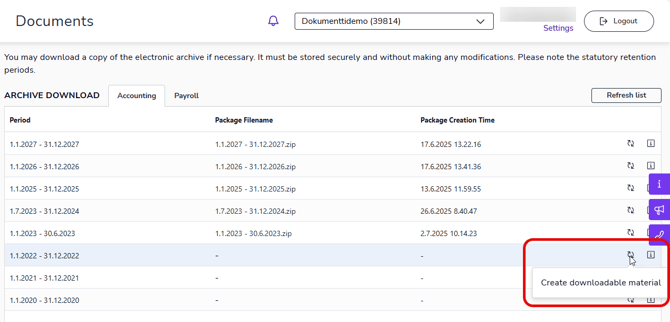
Create downloadable material
In the Accounting archive download view, you can see a list of all accounting periods in the accounting program. In the Payroll view, you can see the last ten calendar years. If the File name column is empty, no downloadable material has been created yet.
- Create downloadable material (.zip file) by selecting Create downloadable material from the right-hand side of the row.
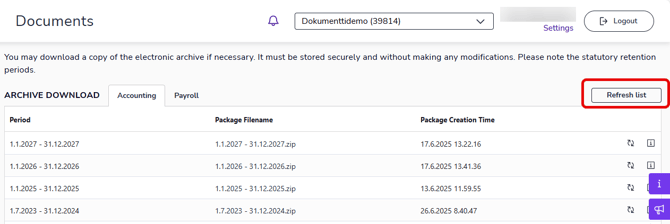
- Depending on the amount of data, it may take a moment to create the file. Select Refresh list to see if the data is ready.
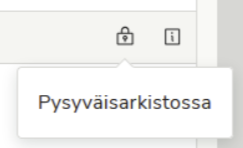
Downloadable data cannot be created if it has already been created from the old Documents service. These data items are marked with a Permanent archive icon.
Download material
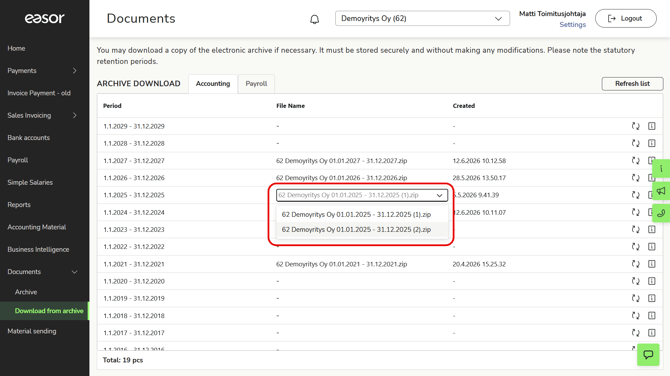
1. Download the material by clicking on the file name.
Please note that the data may consist of multiple ZIP files. Download all the files from the drop-down menu.
2. If you want to update previously created material, select Update file from the right side of the row. The previously created file will be deleted and replaced with the new one.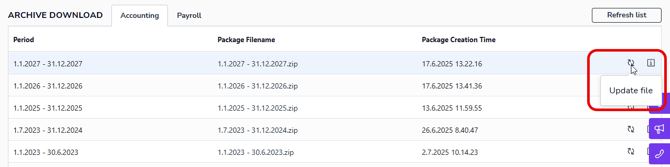
Materials imported from the old Documents service cannot be updated.
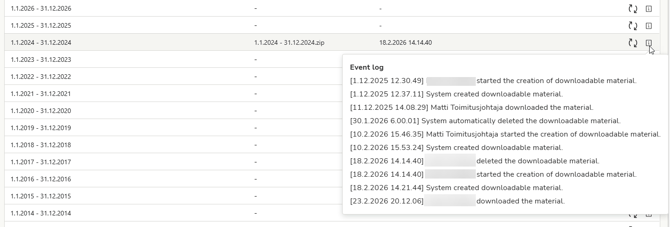
3. The info icon shows you if someone has downloaded the file and when the download took place.