
With the Easor App mobile application, you can conveniently send sales invoices directly from your phone. Select Sales Invoices from the main menu to access the Sales Invoicing service home page. If you want to go directly to creating a new sales invoice, select Sales Invoice from the app's home page.
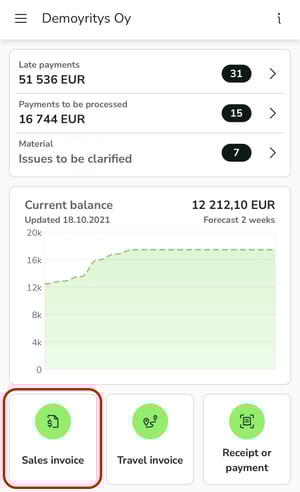
You can create a new sales invoice by selecting the + button on the Sales Invoices page.
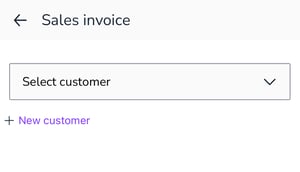
1. Select a customer from the customer register or create a new customer.
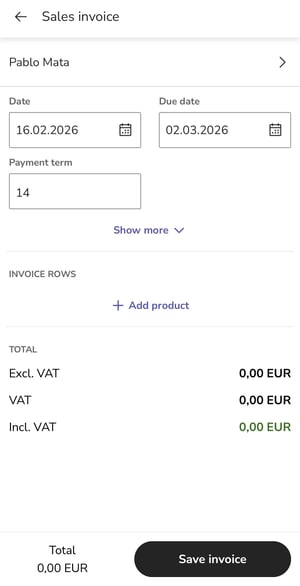
 2. Specify the invoice details, such as the invoice date and payment terms.
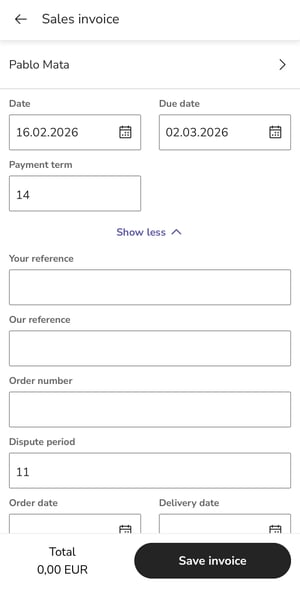
3. Click the Show more link to display additional fields, such as the reference (your own and the customer's), order date, and cash discount.
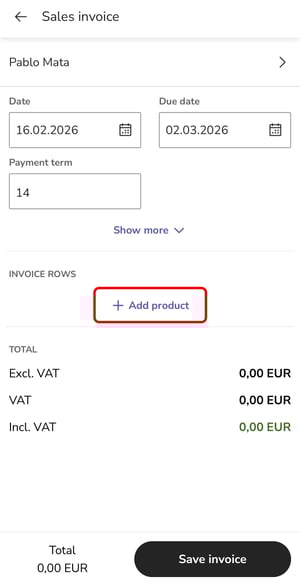
4. Add an invoice line by clicking the Add product link.
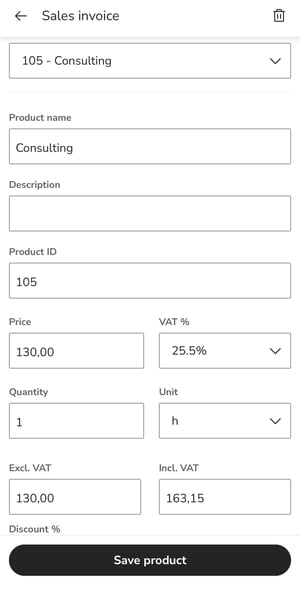
5. Select a product from the Search product menu or create a new product in the product register. Fill in the product details, such as name, price, and quantity, and select a sales account and any cost centers for the product. Finally, select Save product.
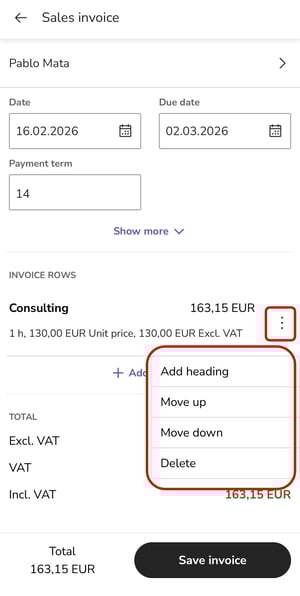
6. Once a product has been added to the invoice, a three-dot menu will appear on the product row. From the menu, you can remove the product row from the invoice, change the order of the product rows, or add a header row.
7. Select Save invoice at the bottom of the view after adding all product rows.
8. Check the sales invoice summary and select the delivery method for the sales invoice at the bottom of the screen. The menu displays the delivery methods that have been marked on the customer card to be invoiced. If a new delivery method needs to be added for the invoice, this can be done in the customer register.
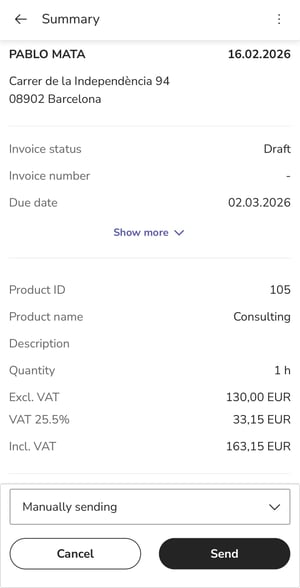
9. From the three dots in the upper right corner of the sales invoice summary view, you can download a PDF file, quote, order confirmation, or shipment from the sales invoice.
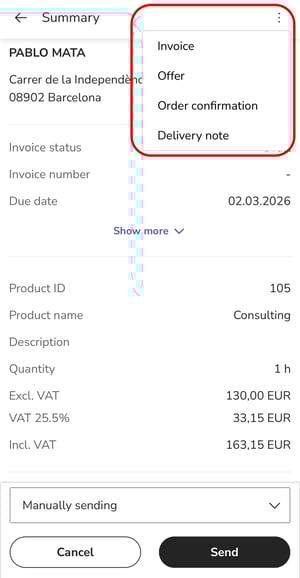
10. When everything is ready, send the sales invoice by selecting Send.