
When you activate digital receipts and shop at stores whose cash register systems support our partner ReceiptHero's digital receipts, you will receive receipts for your card payments directly to your phone.
Here you will find an up-to-date list of merchants that support ReceiptHero's digital receipts.
You can activate the service either directly from the Easor App mobile application's home screen or from Settings. Once the service is activated, you will need to enter the details of the credit cards you want to link to the service on the ReceiptHero registration page.
You can add all credit cards except Eurocard cards to the ReceiptHero service.
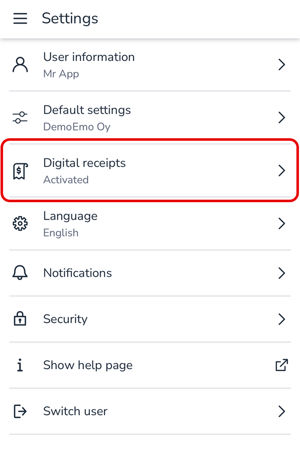
1. Select Settings – Digital receipts from the main menu of the mobile app.
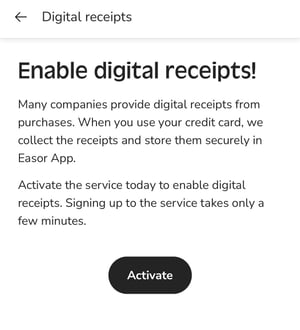
 2. Select Activate. You will be redirected to the ReceiptHero page.
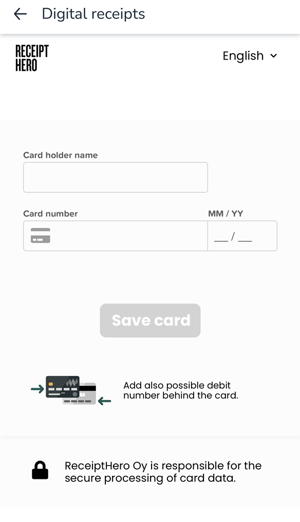
 3. Add the credit card for which you want to order electronic receipts for your purchases. ReceiptHero will process the card details and register the card in the system.
4. Once digital receipts have been activated and you want to add new cards or remove cards that are linked to the service, select Settings – Digital receipts from the main menu. The list shows all credit cards that are linked to the digital receipts service.
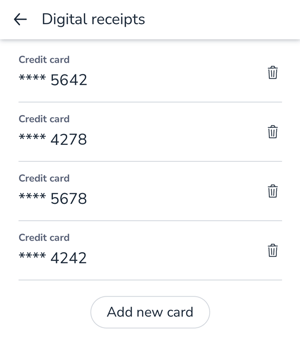
5. Remove a card from the service by clicking the trash can icon next to the card.
6. Add a new credit card to the service by selecting Add new card at the bottom of the screen. You will be redirected to the ReceiptHero page, where you can enter your card details.